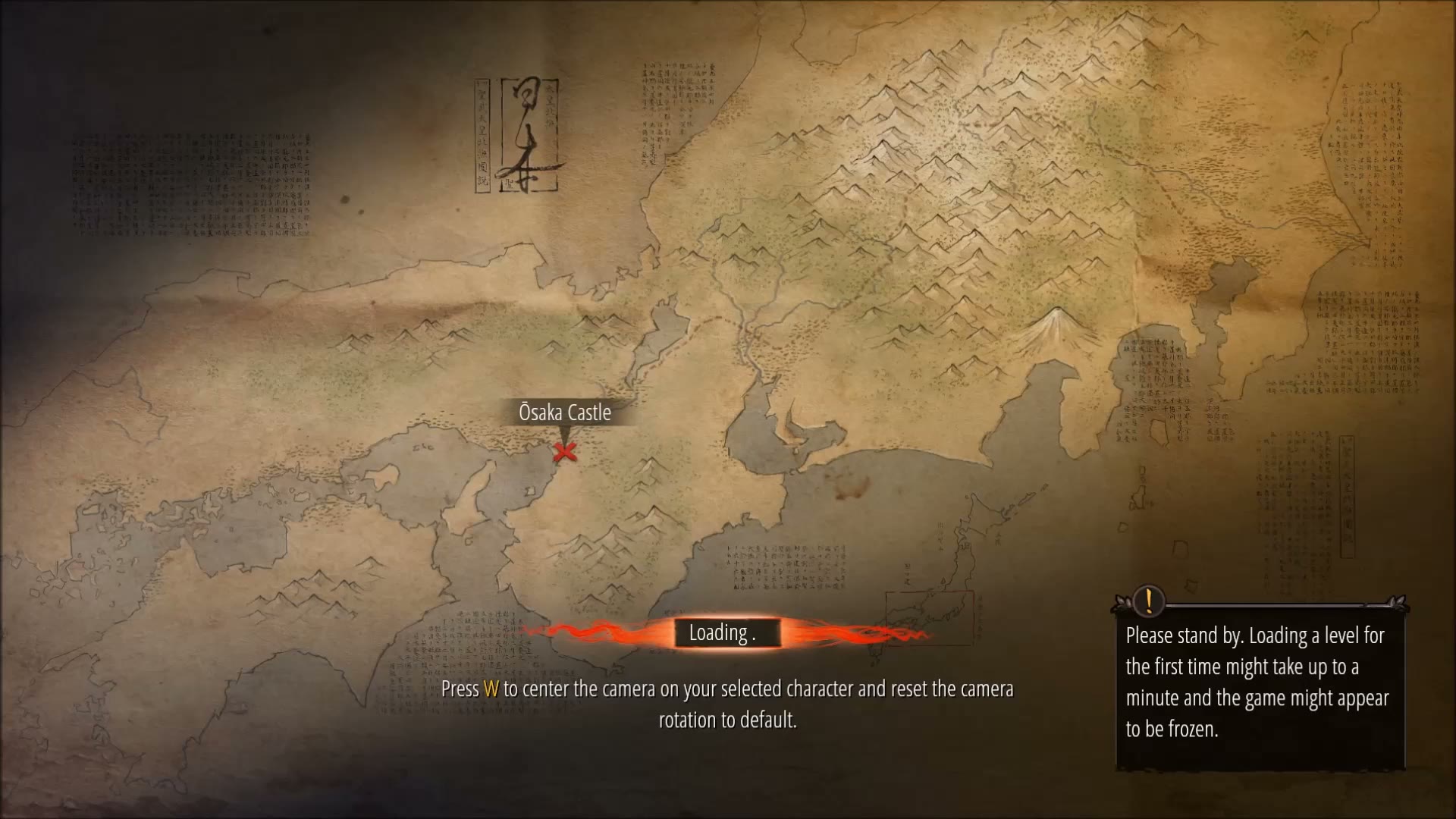

Mission Loading Screen
Shadow Tactics: Blades of the Shogun
- Status
- Released
- Year
- 2016
- Genre
- Indie, Strategy
- Platforms
- Windows, macOS, Linux
1. Summary
The mission loading screen displays an antique parchment map of Japan with the current mission location marked by a red X pin and mission label. A bottom-center loading bar with an animated red progress indicator shows load status, accompanied by contextual gameplay tips and a first-load warning panel. Once loading completes, the loading bar is replaced by a Continue button that transitions the player into the mission intro cutscene or gameplay.
Overview
Mission Loading Screen (ui_4)
The mission loading screen is a non-diegetic shell screen displayed while a mission is being loaded. It features a full-screen antique parchment map of Japan as the background, with the current mission location marked by a red X pin and a mission label. The screen provides visual feedback about loading progress, displays contextual gameplay tips, and shows a warning about initial load times. Once loading completes, the loading bar transforms into a Continue button that transitions the player into the mission’s introductory cutscene or gameplay.
Full Screen Context
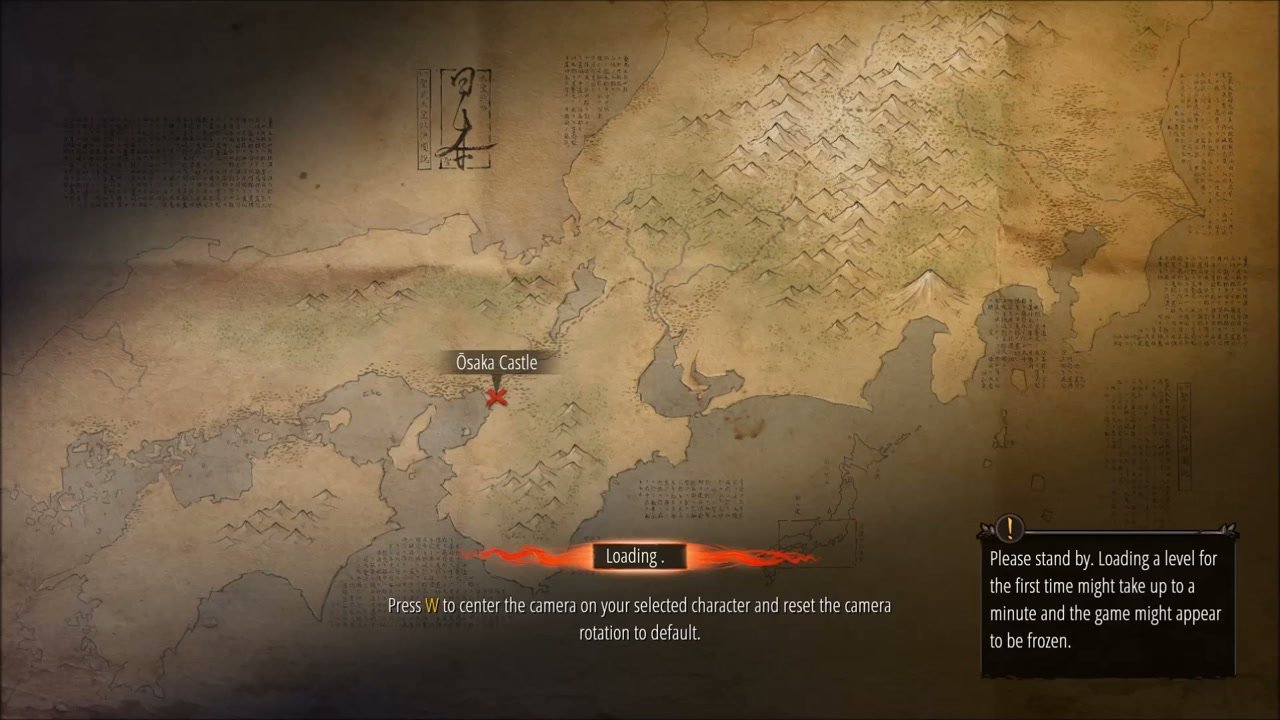
Background Map
The background is a detailed antique-style parchment map of Japan, rendered in sepia and earth tones with topographic details including mountain ranges, coastlines, and calligraphic text blocks in the corners. The map fills the entire screen and has a slightly vignetted dark border.
Mission Location Marker
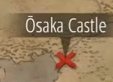
The current mission’s location is highlighted on the map with a red X-shaped pin marker and a dark label banner displaying the mission name, such as “Osaka Castle”. The marker is positioned over the approximate geographic location on the map.
Loading Progress Indicator

A horizontal loading bar is positioned at the bottom center of the screen. It features:
- A dark rectangular background bar
- The text “Loading” in white
- A red animated progress indicator that sweeps across the bar
- Subtle red glow/particle effects around the bar
Gameplay Tip

Below the loading bar, a text area displays rotating gameplay tips and tutorial hints relevant to the upcoming mission or game mechanics. The text is white/cream colored and centered. Example observed text: “Press W to center the camera on your selected character and reset the camera rotation to default.”
Warning Panel
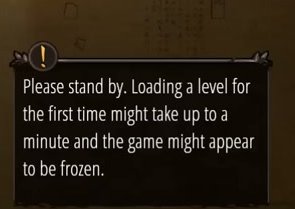
On the right side of the screen, a dark rectangular panel with a decorative frame contains:
- A small hourglass icon at the top-left
- Warning text in white explaining that loading a level for the first time may take up to a minute and the game might appear frozen
- Observed text: “Please stand by. Loading a level for the first time might take up to a minute and the game might appear to be frozen.”
Continue Button
Once loading is complete, the loading bar is replaced by a clickable button labeled “CONTINUE” in yellow/gold text on a dark background. Clicking this button transitions the player into the mission intro cutscene or directly into gameplay.
Job Story
When I select a mission to play, I want to see an immersive loading screen that shows where the mission takes place on the map and provides helpful tips while I wait, so that I can transition smoothly into gameplay with context and patience for load times.
Classification
- diegesis: Non-diegetic
- functional_type: Frontend shell
- component_type: Progress bar/slider
Wireframe
┌─────────────────────────────────────────────────────────┐
│  [Japanese calligraphy scroll art]                      │
│                                                         │
│              ┌──────────────┐                           │
│              │ Osaka Castle │ ← Mission marker          │
│              └──────────────┘                           │
│                    X  ← Red pin marker                  │
│                                                         │
│         [Antique parchment map of Japan background]     │
│                                                         │
│                                                         │
│              ┌─────────────────────┐                    │
│              │      Loading        │ ← Loading bar      │
│              │ [====red glow====]  │                    │
│              └─────────────────────┘                    │
│                                                         │
│   Press W to center the camera...  ← Gameplay tip       │
│                                                         │
│                                  ┌─────────────────┐    │
│                                  │ [hourglass]     │    │
│                                  │ Please stand    │    │
│                                  │ by...           │    │
│                                  │ First-load      │    │
│                                  │ warning         │    │
│                                  └─────────────────┘    │
│                                                         │
│  [After load completes:]                                │
│              ┌───────────┐                              │
│              │ CONTINUE  │  ← Continue button           │
│              └───────────┘                              │
└─────────────────────────────────────────────────────────┘
Layout notes:
- Full-screen antique parchment map background with vignette dark borders
- Japanese calligraphy scroll art in top-left area
- Mission marker (red X pin + label) positioned over the mission’s geographic location
- Loading bar centered horizontally at ~75% from top (y=0.738-0.812)
- Gameplay tip text centered below loading bar (y=0.825-0.920)
- Warning panel on right side (x=0.756-0.986, y=0.656-0.946)
- Continue button replaces loading bar at the same lower-center position after loading completes
Components
- Background Map — Full-screen antique parchment map of Japan in sepia/earth tones with topographic details, mountain ranges, coastlines, and calligraphic text blocks. Vignetted dark border edges.
- Japanese Calligraphy Scroll — Decorative vertical scroll with Japanese/Chinese characters positioned in the upper-left area of the map.
- Mission Location Marker — Red X-shaped pin marker with a dark rectangular label banner showing the mission name, such as "Osaka Castle". Positioned over the mission's approximate geographic location on the map.
- Loading Progress Bar — Horizontal bar at bottom center containing:
- Dark rectangular background
- White text "Loading"
- Red animated progress indicator with glow/particle effects
- Disappears after loading completes
- Gameplay Tip Text Area — Centered text block below the loading bar displaying rotating tutorial hints and gameplay advice in white/cream text. Content changes per mission or randomly from a tip pool.
- Warning Panel — Dark rectangular panel on the right side with decorative frame containing:
- Hourglass icon at top-left
- Warning text about first-time level load duration, up to one minute
- Observed text: "Please stand by. Loading a level for the first time might take up to a minute and the game might appear to be frozen."
- Continue Button — Appears after loading completes, replacing the loading bar. Dark background with yellow/gold text "CONTINUE". Click transitions to the mission intro.
Parameters & Audio
| Parameter | Value | Type | Notes |
|---|---|---|---|
| Background Ambience | Subtle atmospheric ambient sound or traditional Japanese-inspired instrumental music plays during loading | Text | — |
| Loading Sound | Soft ambient loop or silence; no harsh loading sounds observed | Text | — |
| Continue Button Appear | Subtle audio cue when the Continue button appears after loading completes | Text | — |
| Button Click | Confirmation sound when clicking Continue to proceed to the mission | Text | — |
| Map Ambience | Possible subtle paper/scroll ambient texture sound to reinforce the parchment map aesthetic | Text | — |
Dependencies & Logic
- Mission data: Requires the mission identifier, localized name, and geographic location to position the marker on the map
- Loading progress: The loading bar animation and Continue button visibility depend on the engine's level loading progress (0% to 100%)
- Tip pool: Gameplay tips require a configured pool of localized tutorial strings relevant to available game mechanics
- First-load detection: The warning panel should only appear on the first level load (or first load after game installation) to avoid annoying repeat players
- Save data (for loads): When loading from a save, the screen must restore the correct mission context and state
- Localization: All text elements (mission name, tips, warning, Continue button) must support all configured languages
- Cutscene readiness: The Continue button should only appear once both the level geometry and the introductory cutscene assets are fully loaded
BDD Scenarios
Scenario: Load a new mission from the main menu
- Given
- the player has selected "New Game" and chosen a difficulty
- When
- the mission begins loading
- Then
- the mission loading screen appears with the Japan map background
- And
- the current mission location is marked with a red X pin and label
- And
- a loading bar with "Loading" text is visible at the bottom center
- And
- a gameplay tip is displayed below the loading bar
Scenario: First-time load warning display
- Given
- this is the player's first time loading a level
- When
- the mission loading screen appears
- Then
- a warning panel is visible on the right side
- And
- the warning explains that the first load may take up to a minute and the game may appear frozen
Scenario: Continue to mission after loading
- Given
- the mission loading screen is displayed
- When
- the level finishes loading the player clicks the Continue button
- Then
- the loading bar is replaced by a "CONTINUE" button the screen transitions to the mission introductory cutscene
Scenario: Loading from a save game
- Given
- the player has selected a save slot from the Load menu
- When
- the saved mission state begins loading loading completes and the player clicks Continue
- Then
- the mission loading screen appears showing the correct mission location gameplay resumes from the saved state
- And
- the loading progress bar indicates the restore progress
Edge Cases
- Loading fails or hangs: If loading exceeds a timeout threshold, the game should show an error message or offer to return to the main menu rather than remaining on the loading screen indefinitely
- Missing mission data: If the mission identifier is invalid or corrupted, the marker should display a fallback label or hide the marker rather than crash
- Empty tip pool: If no gameplay tips are configured, the tip text area should be hidden or show a default message
- Localization missing: If a localized string is missing for the current language, fall back to English or the default language rather than showing empty text
- Rapid Continue clicks: If the player clicks Continue multiple times rapidly, the transition should only trigger once and ignore subsequent clicks
- Cutscene asset missing: If the intro cutscene fails to load, the game should skip the cutscene and transition directly to gameplay
- Low memory during load: The game should handle out-of-memory conditions gracefully, potentially showing a system-level error rather than a silent hang
- Resolution changes during load: If the display resolution changes while on the loading screen, the UI elements should reposition correctly
QA Notes
- Verify the Japan map background renders correctly at all supported resolutions and aspect ratios
- Confirm the mission marker is positioned at the correct geographic location for each mission
- Test that the loading bar animation plays smoothly and is synchronized with actual loading progress
- Verify the Continue button appears only after loading is 100% complete
- Test clicking Continue with mouse, keyboard (Enter/Space), and controller inputs
- Confirm gameplay tips rotate and are localized correctly for all supported languages
- Verify the warning panel appears on first load and is suppressed on subsequent loads
- Test loading from saves for multiple missions and confirm correct mission context is shown
- Verify the screen transitions correctly to the mission intro cutscene (or gameplay if cutscene is skipped)
- Test behavior when loading is interrupted (Alt+F4, system sleep, etc.) and resumed
- Confirm no UI elements overlap or clip at minimum supported resolution
- Test with very fast SSD loading to ensure the Continue button still appears correctly
- Test with slow loading (simulated) to ensure the warning panel's claim about load time is accurate
Mechanic Links
- Mission Objective Variety - test