
Main Menu Screen
Shadow Tactics: Blades of the Shogun
- Status
- Released
- Year
- 2016
- Genre
- Indie, Strategy
- Platforms
- Windows, macOS, Linux
1. Summary
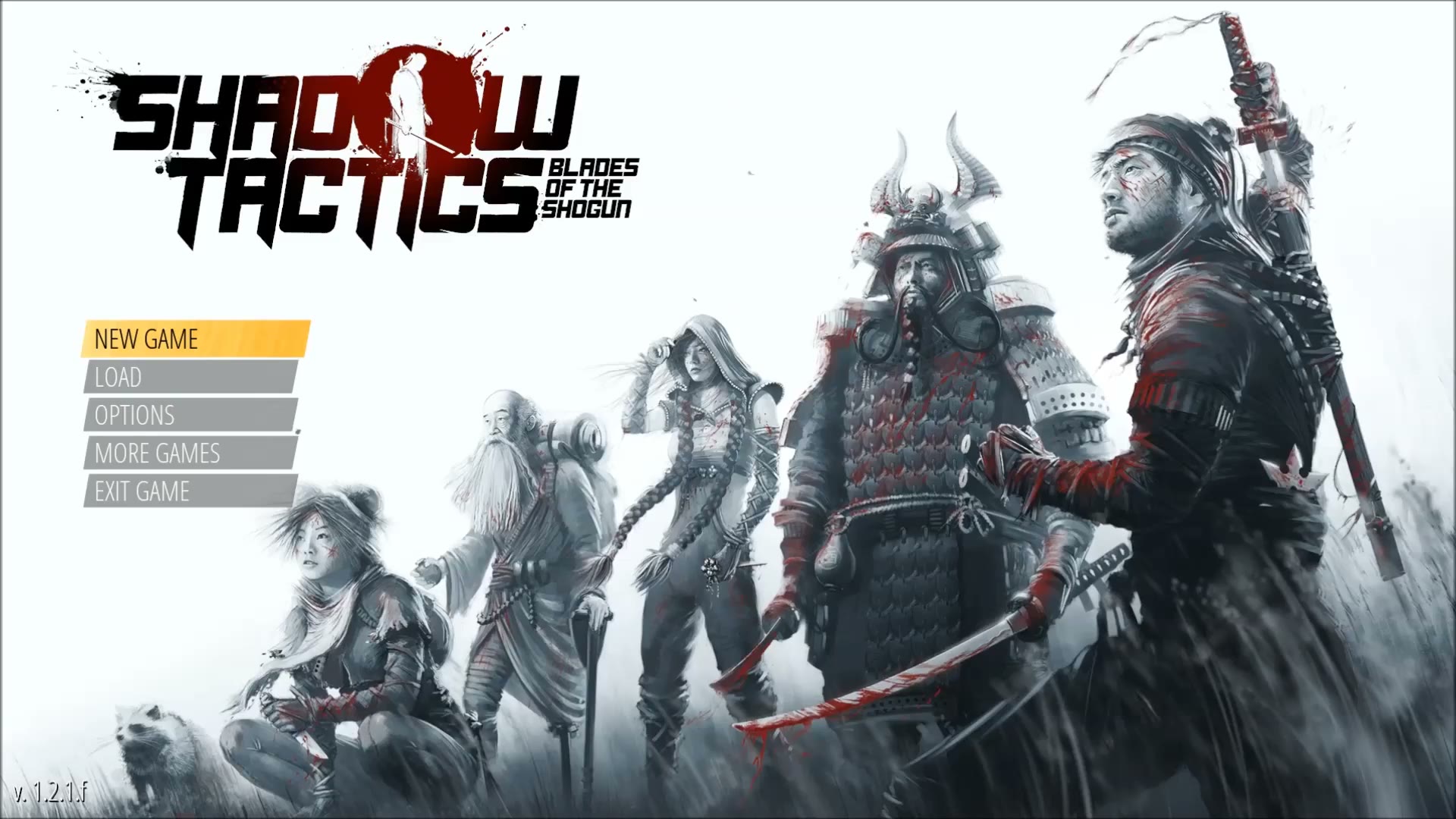
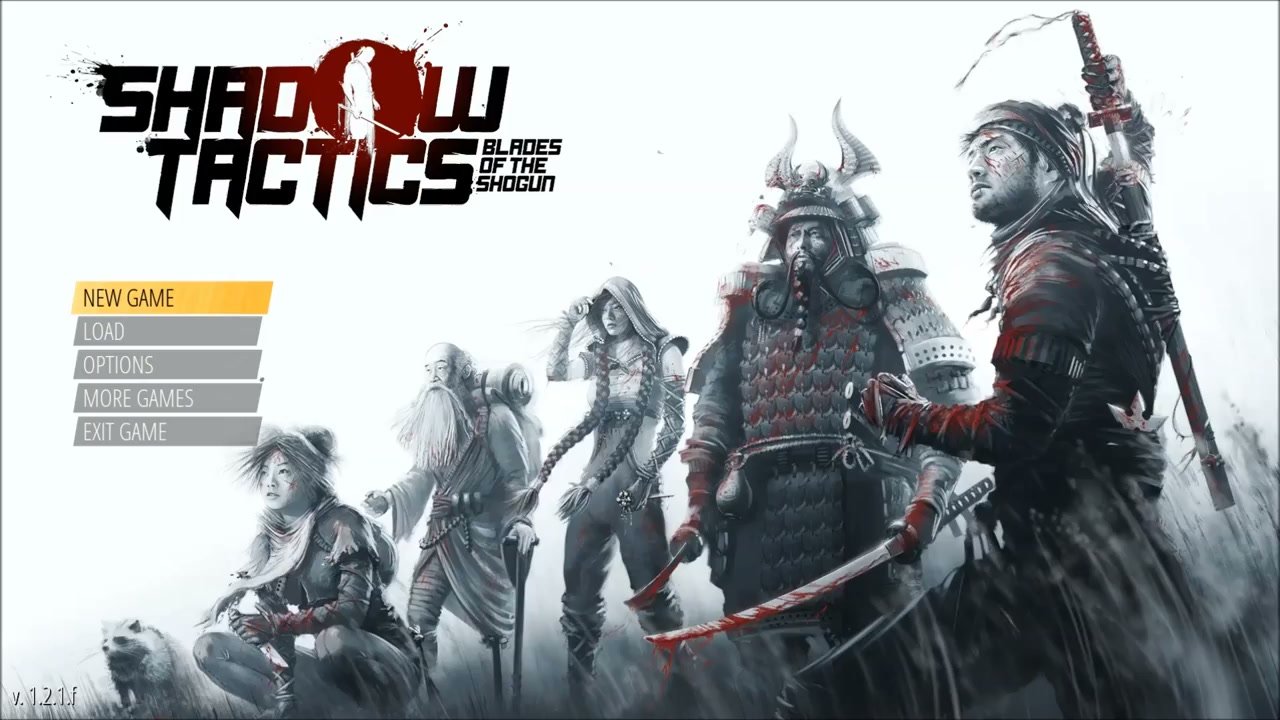
The main menu screen is the primary shell hub of Shadow Tactics: Blades of the Shogun, displayed after the initial launch sequence. It presents the game logo in the top-left, a vertical stack of five navigation buttons (New Game, Load, Options, More Games, Exit Game) on the left side, a version number in the bottom-left, and a full-screen ink-wash character illustration as the background. This screen acts as the entry point for pre-gameplay interactions including starting a new campaign, loading saves, adjusting options, viewing promotional content, and exiting the application.
Overview
Main Menu Screen (ui_1)
The main menu screen is the primary shell hub of Shadow Tactics: Blades of the Shogun. After the launch sequence, the player is presented with a full-screen view featuring the game logo, a vertical stack of navigation buttons on the left, and a monochromatic ink-wash illustration of the five main characters as the background.
Full Screen Context
Game Logo

The logo features “SHADOW TACTICS” in large, bold, black distressed font with “BLADES OF THE SHOGUN” in smaller text to the right. A red circular brushstroke emblem containing a character silhouette sits behind the title text, anchoring the feudal Japan aesthetic.
Menu Button Stack
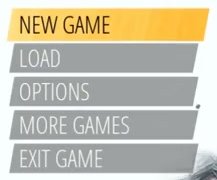
The five buttons are rectangular bars with a slanted right edge. Default state is grey/semi-transparent with white text. The selected button highlights in yellow/gold. The buttons are stacked vertically on the left side of the screen below the logo.
New Game Dialog
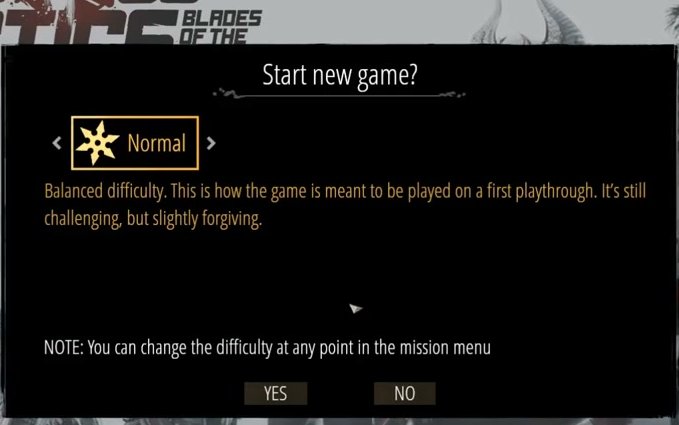
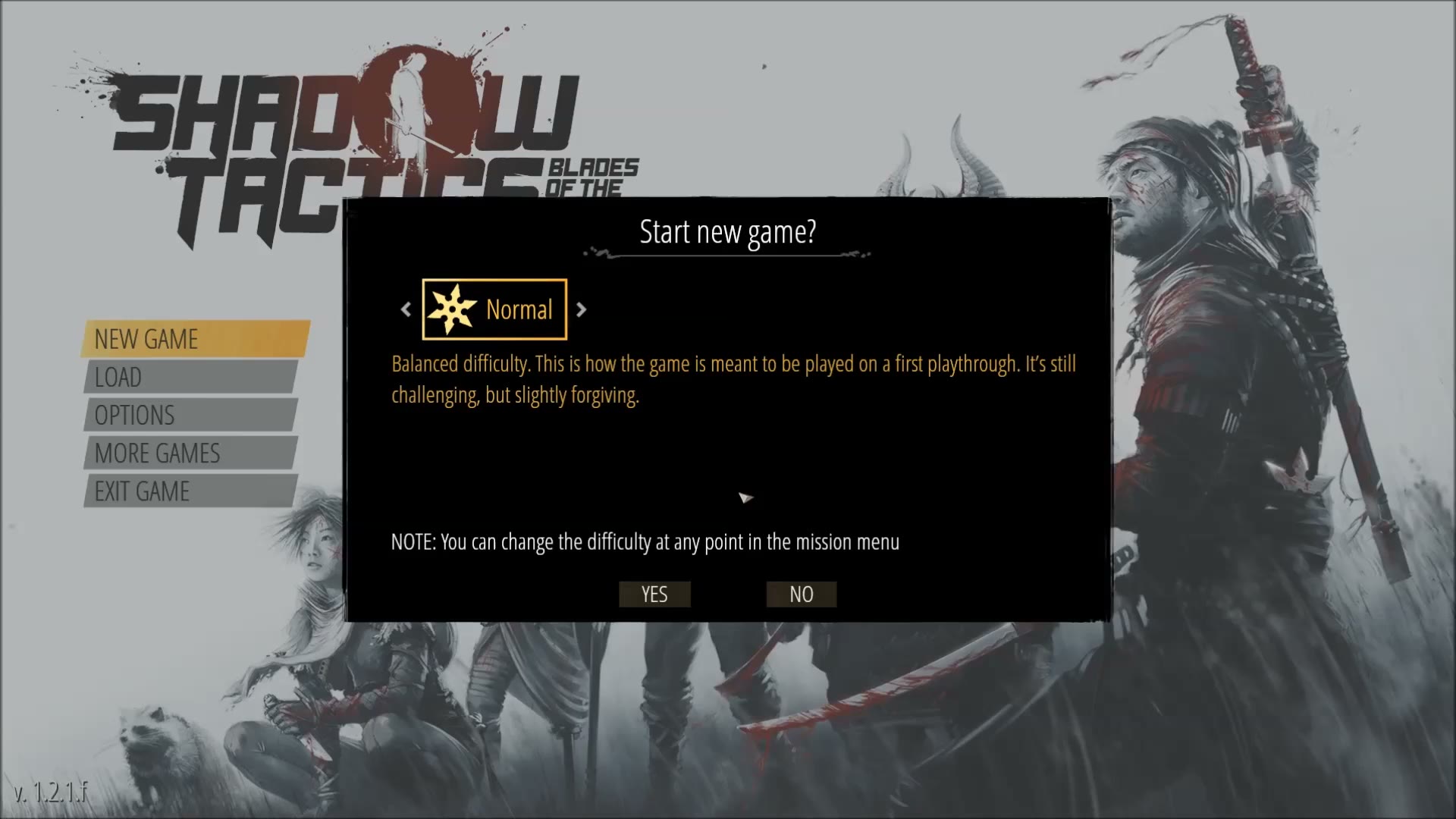
Selecting New Game opens a centered dark dialog titled “Start new game?”. It includes a difficulty selector with left/right arrows, the selected difficulty label and icon, explanatory text, a note that difficulty can be changed later from the mission menu, and Yes/No confirmation buttons.
Options Menu
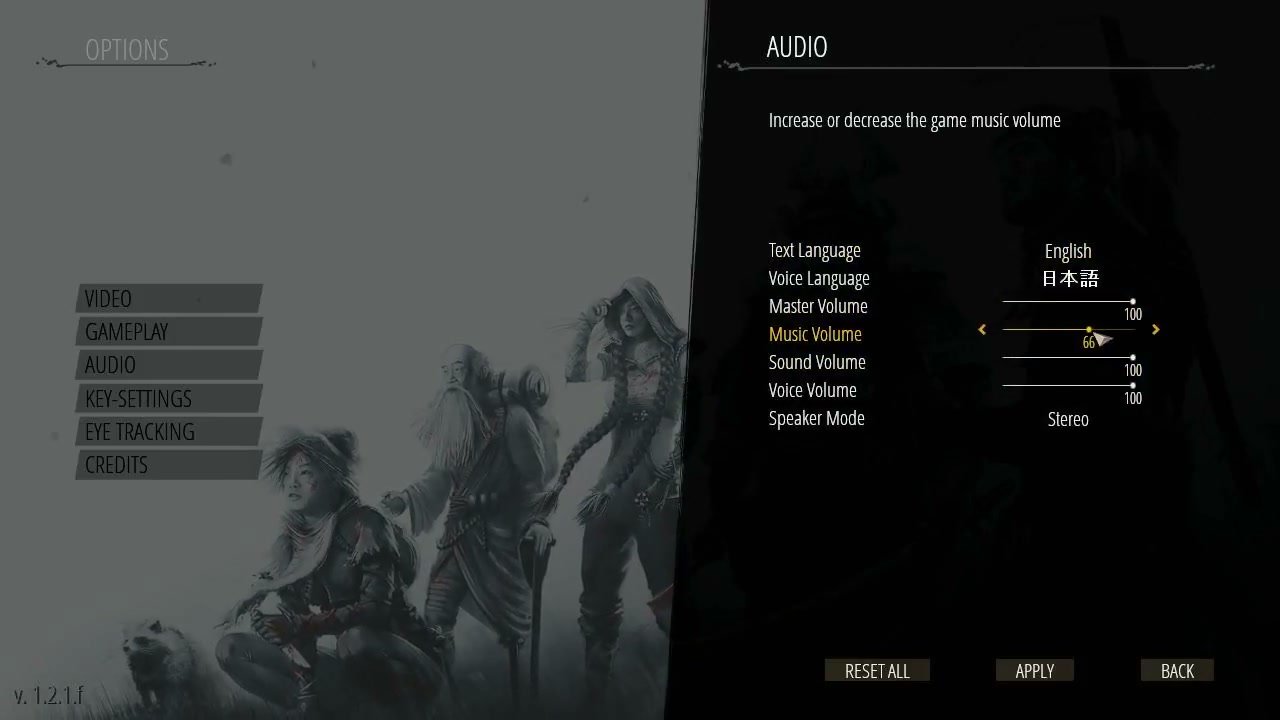
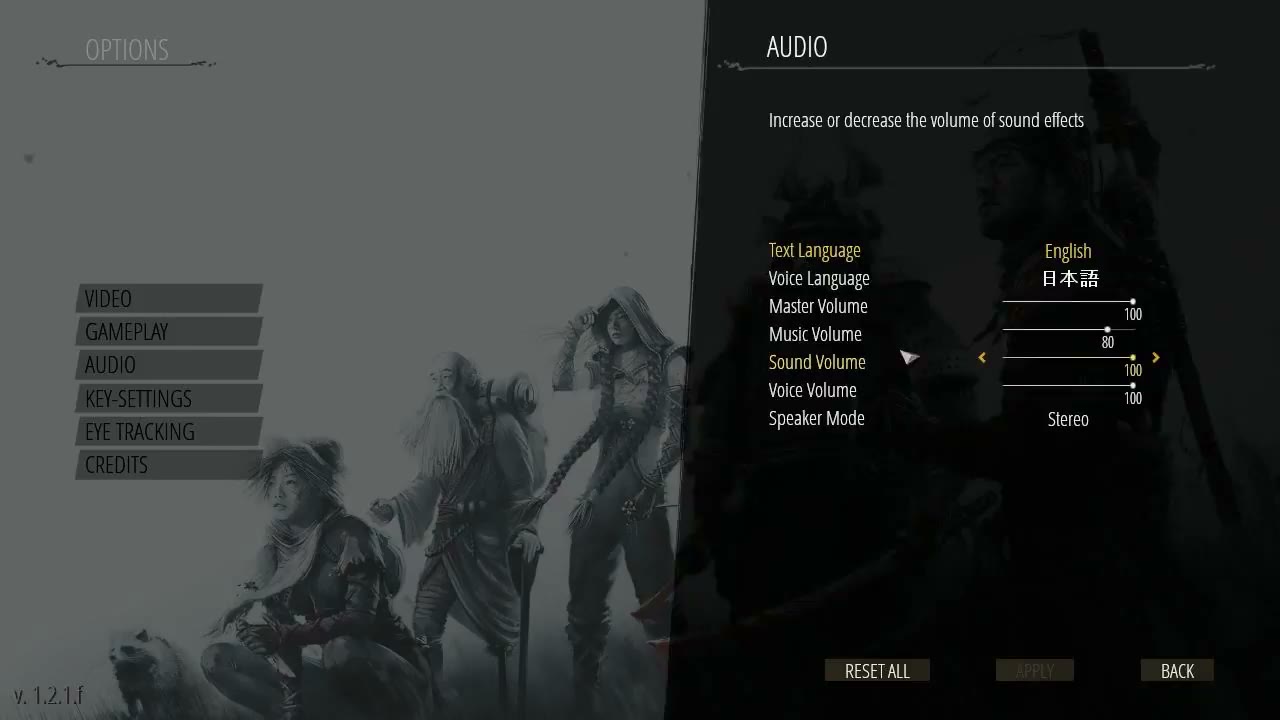
Selecting Options opens a full-screen options menu. The category list appears on the left with Video, Gameplay, Audio, Key-Settings, Eye Tracking, and Credits. Selecting a category opens the corresponding settings panel on the right.
Screen Composition
- Top-left: Game logo anchored in the upper-left quadrant
- Left side: Vertical button stack with five items
- Background: Full-screen monochromatic ink-wash illustration of the five characters (Hayato, Mugen, Yuki, Aiko, Takuma) with a tanuki in the bottom-left area
- Bottom-left: Small version number text (v.1.2.1.f in the observed build)
- Center/Right: Unobstructed character artwork when no modal or sub-menu is open
Key Interactions
- New Game opens a centered dialog with difficulty selection and Yes/No confirmation buttons
- Options opens a category-based configuration screen
- More Games opens a centered popup with promotional banners for the developer’s other titles, dismissible via a close button
- Load opens a save/load dialog listing available save slots
- Exit Game closes the application, potentially after confirmation
Job Story
When I launch Shadow Tactics and want to begin or resume playing, I want to quickly find and select the appropriate action from a clearly organized menu, so that I can start my session with minimal friction.
Classification
- diegesis: Non-diegetic
- functional_type: Frontend shell
- component_type: Button
Wireframe
+---------------------------------------------------------+
| [LOGO]                                                  |
| SHADOW TACTICS                                          |
| BLADES OF THE SHOGUN                                    |
|                                                         |
|  +------------------+                                   |
|  | NEW GAME         |                                   |
|  +------------------+                                   |
|  | LOAD             |                                   |
|  +------------------+                                   |
|  | OPTIONS          |                                   |
|  +------------------+                                   |
|  | MORE GAMES       |                                   |
|  +------------------+                                   |
|  | EXIT GAME        |                                   |
|  +------------------+                                   |
|                                                         |
|  [ink-wash character illustration background]           |
|                                              v.1.2.1.f  |
|                                                         |
|  Example centered modal after selecting New Game:       |
|             +--------------------------+                |
|             | Start new game?          |                |
|             | < Normal >               |                |
|             | [YES]        [NO]        |                |
|             +--------------------------+                |
+---------------------------------------------------------+
Layout notes:
- Logo anchored top-left (roughly x=0.045-0.445, y=0.055-0.285)
- Menu button stack positioned on the left side below the logo (roughly x=0.05-0.22, y=0.38-0.63)
- Buttons are rectangular with a slanted right edge, grey/semi-transparent by default
- Selected button highlights yellow/gold
- Version number appears as small text in the bottom-left corner
- Background fills the entire screen with monochrome ink-wash character art
- Modal dialogs overlay the center of the screen with the main menu dimmed behind them
Components
- Game Logo — "SHADOW TACTICS: BLADES OF THE SHOGUN" in bold black stylized font with a red circular brushstroke emblem containing a character silhouette. Positioned top-left.
- Menu Button Stack — Left-aligned vertical list of five buttons:
- New Game — Opens the Start New Game difficulty dialog
- Load — Opens the save/load dialog
- Options — Opens the options sub-menu with Video, Gameplay, Audio, Key-Settings, Eye Tracking, and Credits categories
- More Games — Opens the developer promotional popup
- Exit Game — Exits the application, potentially after confirmation
- Button Style — Rectangular bars with slanted right edge; default state is grey/semi-transparent; selected/hover state is solid yellow/gold; white text labels.
- Version Number — Small version text in the bottom-left corner, observed as "v.1.2.1.f" in the captured build.
- Background Illustration — Full-screen monochromatic ink-wash style artwork depicting the five main characters (Hayato, Mugen, Yuki, Aiko, Takuma) standing together, with a tanuki animal in the bottom-left area. Mix of black, white, and red tones.
- Start New Game Dialog — Dark rectangular panel centered on screen:
- Title: "Start new game?"
- Difficulty selector with left/right arrows, current difficulty name, and icon
- Description text explaining the selected difficulty
- Note that difficulty can be changed later from the mission menu
- Confirmation buttons: Yes and No
- More Games Popup — Centered promotional popup for the developer's other titles, dismissible through a close control.
- Options Sub-menu — Category-based settings interface:
- Left panel: Video, Gameplay, Audio, Key-Settings, Eye Tracking, Credits
- Right panel: Settings for selected category, such as language, volume, speaker mode, toggles, or sliders
- Footer actions: Reset All, Apply, Back
Parameters & Audio
| Parameter | Value | Type | Notes |
|---|---|---|---|
| Background Music | Atmospheric ambient theme plays on the main menu (Japanese-inspired orchestral score consistent with the feudal Japan setting) | Text | — |
| Button Hover | Subtle audio cue on mouse-over navigation between menu items | Text | — |
| Button Click | Confirmation sound on menu selection | Text | — |
| Modal Open/Close | Transition sound when modals such as New Game or More Games appear or dismiss | Text | — |
| Menu Transition | Subtle audio transition when moving between the launch sequence and main menu | Text | — |
Dependencies & Logic
- Save data presence: The Load button may be visually disabled or lead to an empty save list when no save files exist
- Game state: The main menu is accessible outside active gameplay; entering it from an active mission requires quitting the current session
- Application lifecycle: This is the first primary interactive shell screen after the launch sequence
- Platform integration: The More Games promotional content depends on external store or URL availability
- Options persistence: Options changed via the Options sub-menu persist across sessions when applied
BDD Scenarios
Scenario: Main menu is displayed after launch
- Given
- the player has launched the game
- When
- the launch sequence completes
- Then
- the main menu appears over the character illustration background
- And
- the logo is visible in the top-left
- And
- the left-side menu shows New Game, Load, Options, More Games, and Exit Game
Scenario: Start a new game
- Given
- the player is on the main menu
- When
- the player clicks "New Game" the player selects a difficulty and clicks "Yes"
- Then
- a modal dialog appears asking "Start new game?" with a difficulty selector the game transitions to the mission loading screen and begins the campaign
Scenario: Load an existing game
- Given
- the player is on the main menu and has at least one save file
- When
- the player clicks "Load" the player selects a save slot
- Then
- a save/load dialog appears listing available save slots the game transitions to the mission loading screen and loads the saved state
Scenario: Open options from main menu
- Given
- the player is on the main menu
- When
- the player clicks "Options" the player clicks "Back"
- Then
- the options menu appears with categories: Video, Gameplay, Audio, Key-Settings, Eye Tracking, and Credits the options menu closes and the main menu is displayed again
Scenario: View other games promotional content
- Given
- the player is on the main menu
- When
- the player clicks "More Games" the player closes the popup
- Then
- a popup window appears displaying promotional content for the developer's other titles the popup closes and the main menu is fully visible again
Scenario: Exit the application
- Given
- the player is on the main menu
- When
- the player clicks "Exit Game"
- Then
- the application closes or shows a confirmation dialog before closing
Edge Cases
- No save data available: Load may be greyed out or may open an empty save list; clicking it should provide clear feedback
- Rapid menu navigation: Fast mouse movement between buttons should not cause visual glitches or mis-selection
- Modal dismissal: Clicking outside a modal or pressing Escape should close the modal and return to the main menu when supported
- Network/external link failure: The More Games popup may fail to load promotional content if store integration is unavailable; it should show a graceful fallback or remain functional as a static display
- Unsaved option changes: Navigating away from Options with unsaved changes should prompt a confirmation dialog
- Resolution/display changes: After changing video settings such as resolution or fullscreen mode, the main menu should re-render correctly at the new resolution
- Version mismatch: When loading a save from a different game version, the system should handle compatibility gracefully
QA Notes
- Verify all five main menu buttons are visible and correctly labeled in all supported languages
- Test keyboard-only navigation through the menu, including arrow keys, Tab, and Enter where supported
- Test mouse hover highlight effect on each button, including the yellow/gold selected state
- Verify the More Games popup opens and closes correctly
- Confirm the Start New Game difficulty selector cycles through all available difficulties with correct descriptions
- Verify options changes persist after exiting and re-launching the game
- Test that the version number displays correctly in the bottom-left corner
- Verify the background illustration renders correctly at all supported resolutions
- Check that the main menu is reachable from in-game pause flow through Quit to Main Menu
- Verify Exit Game behavior, including whether it exits directly or shows confirmation
- Test on different aspect ratios (16:9, 16:10, 4:3, ultrawide)
- Verify no UI elements overlap or clip at minimum supported resolution