
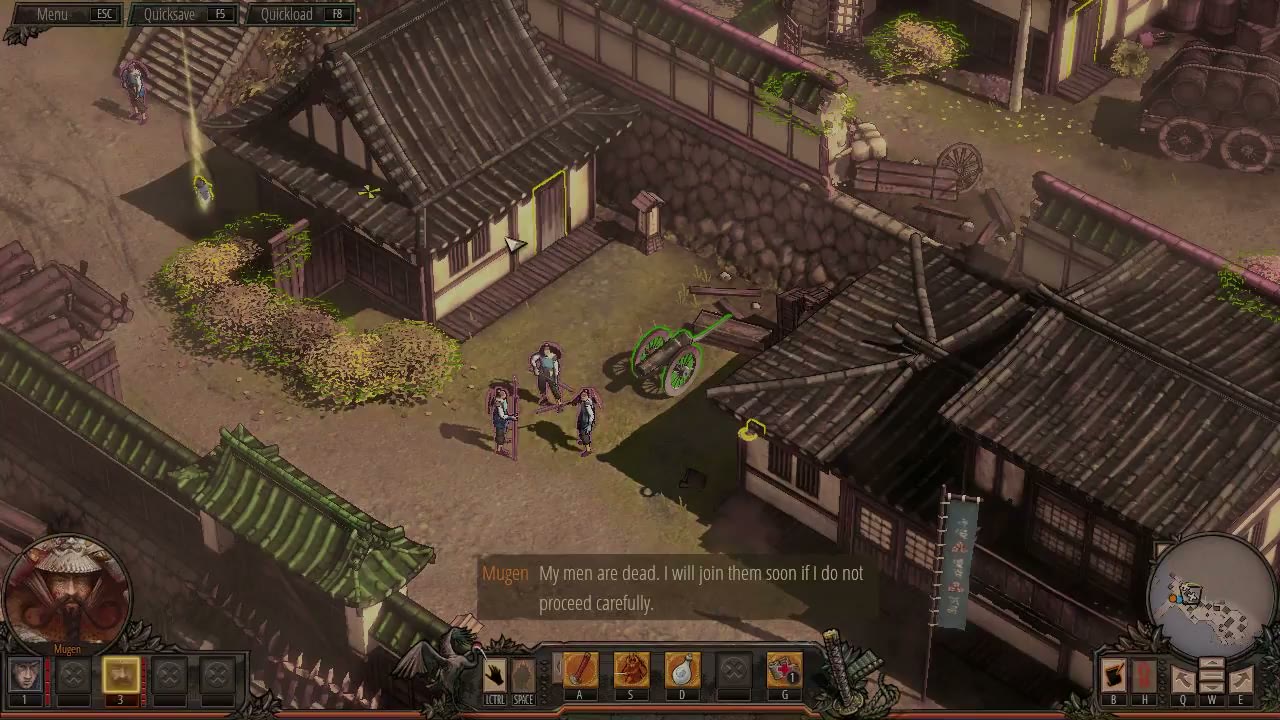

Options Menu
Shadow Tactics: Blades of the Shogun
- Status
- Released
- Year
- 2016
- Genre
- Indie, Strategy
- Platforms
- Windows, macOS, Linux
1. Summary
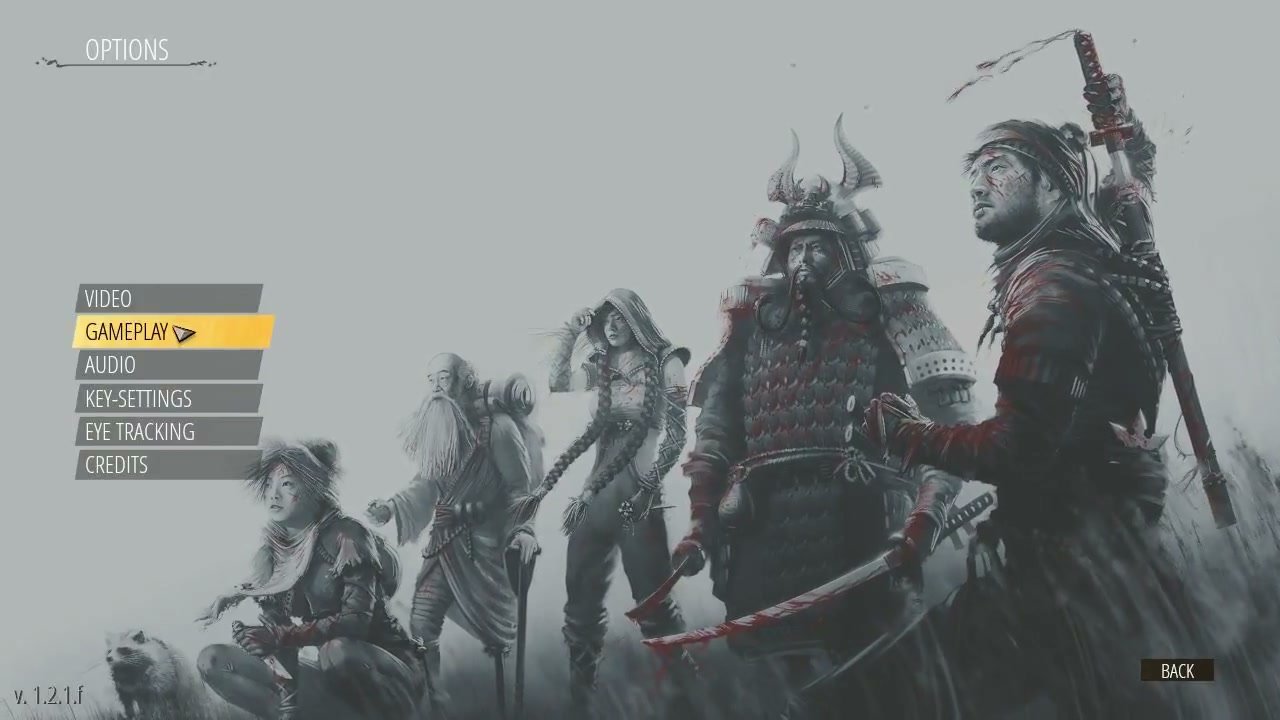
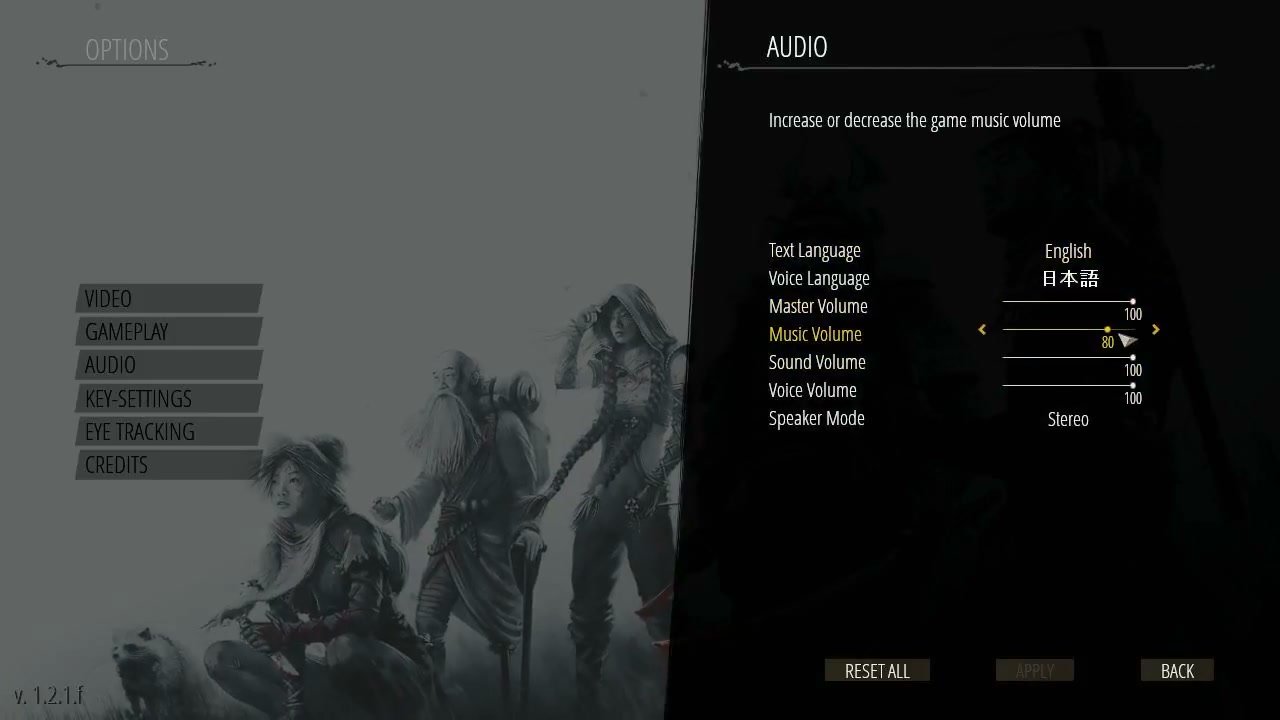
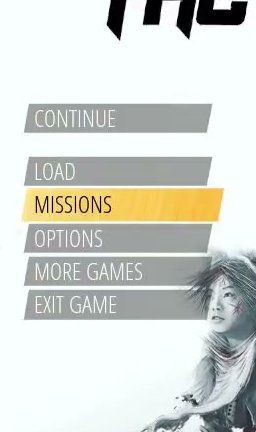
Full-screen Options menu with a left-side category navigation list and a right-side configuration panel. The available categories are Video, Gameplay, Audio, Key-Settings, Eye Tracking, and Credits. The background shows the main menu artwork or paused gameplay in a dimmed state. Action buttons such as Reset All, Apply, and Back sit at the bottom of the active settings panel.
Overview
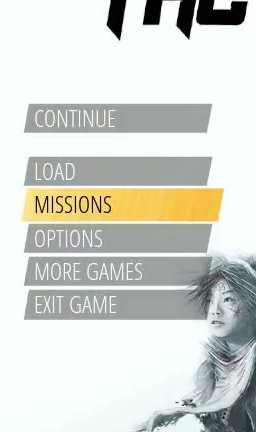
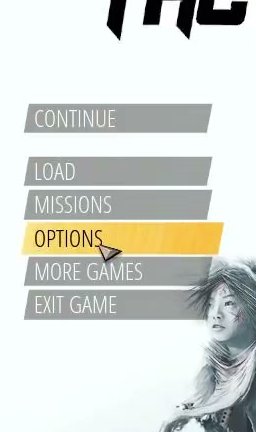
The Options Menu is a full-screen, non-diegetic configuration interface accessible from the Main Menu and the in-game Pause Menu. The layout is split into two main regions: a left-side category list and a right-side settings panel, with either the main menu artwork or paused gameplay visible in a dimmed state behind the UI.
Category List (Left Panel)
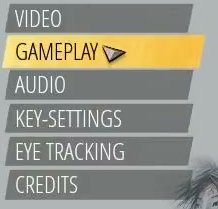
Six categories are stacked vertically on the left:
- Video
- Gameplay
- Audio
- Key-Settings
- Eye Tracking
- Credits
The active category is highlighted with a yellow/gold background. Clicking or navigating to a category loads its settings in the right panel.
Settings Panel (Right Panel)
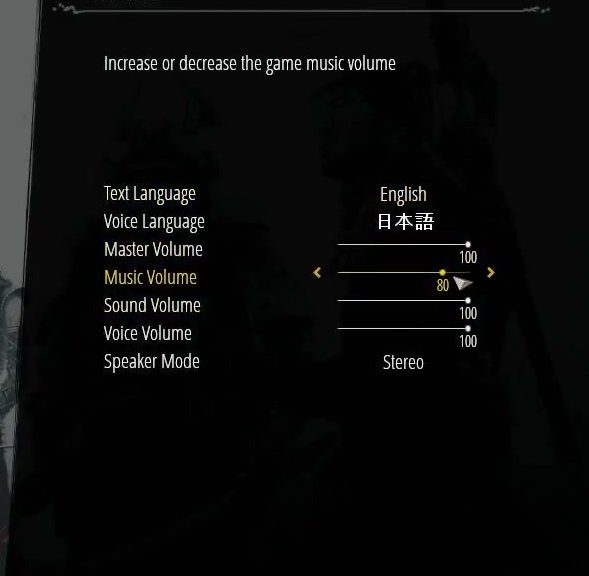
Each category displays its settings as labeled rows. The observed Audio panel uses:
- Arrow selectors for language and speaker mode values.
- Sliders for numeric volume settings.
- Context help text at the top of the panel for the currently selected row.
The panel can show category-specific controls such as bindings, selectors, sliders, or toggles depending on the selected category.
Action Buttons
At the bottom of the active settings panel:
- Reset All: Restores default settings.
- Apply: Saves pending changes.
- Back: Returns to the previous screen.
Visual Evidence
Job Story
When I want to customize my gameplay experience before or during play, I want to adjust audio, video, controls, language, and accessibility settings, so that the game feels comfortable and is configured to my preferences.
Classification
- diegesis: Non-diegetic
- functional_type: Frontend shell
Wireframe
+-----------------------------------------------------------+
|  OPTIONS                                                  |
|                                                           |
|  +--------------+  +------------------------------------+ |
|  | VIDEO        |  |  Category Title (e.g., AUDIO)      | |
|  | GAMEPLAY     |  |  --------------------------------  | |
|  | AUDIO        |  |                                    | |
|  | KEY-SETTINGS |  |  Help text for selected setting    | |
|  | EYE TRACKING |  |                                    | |
|  | CREDITS      |  |  Setting Label        < Value >    | |
|  +--------------+  |  Setting Label        [ Slider ]   | |
|                    |  Setting Label        < Value >    | |
|                    |                                    | |
|                    |                                    | |
|                    |  [RESET ALL] [APPLY] [BACK]        | |
|                    +------------------------------------+ |
|                                                           |
+-----------------------------------------------------------+
Layout notes:
- Dimmed main menu artwork or paused gameplay remains visible behind the Options overlay.
- The category list is left-aligned and vertically stacked.
- The active category uses a yellow/gold highlight.
- The right settings panel slides or fades in over the right half of the screen.
- Action buttons are anchored along the lower edge of the active panel.
Components
- Category List (left panel): Vertically stacked buttons for Video, Gameplay, Audio, Key-Settings, Eye Tracking, and Credits. The active category is highlighted in yellow/gold.
- Settings Panel (right panel): Dark panel displaying settings for the selected category. Observed Audio rows include Text Language, Voice Language, Master Volume, Music Volume, Sound Volume, Voice Volume, and Speaker Mode.
- Setting Row: Label on the left, value/control on the right, with contextual help text at the top of the panel.
- Slider: Horizontal slider with numeric value, used for volume settings.
- Arrow Selector: Left/right arrows to cycle through discrete values, used for language and speaker mode selections.
- Action Buttons (bottom):
- Reset All: Resets settings to defaults.
- Apply: Confirms and saves pending changes.
- Back: Returns to the previous screen.
Parameters & Audio
| Parameter | Value | Type | Notes |
|---|---|---|---|
| Navigation sounds | Audible feedback when moving between categories or setting rows. | Text | — |
| Slider adjustment | Subtle click/tick sound when dragging sliders. | Text | — |
| Selection confirm | Distinct sound when toggling values or selecting options. | Text | — |
| Button press | Confirm sound for Apply/Back/Reset All actions. | Text | — |
| Background music | Continues from the main menu but can be muted via the Audio panel. | Text | — |
Dependencies & Logic
- Game state: Options can be accessed from the main menu or in-game pause menu. Some settings, such as display configuration, may require confirmation or a restart depending on platform behavior.
- Display capabilities: Available resolutions and display modes depend on the connected monitor and platform.
- Input devices: Key-Settings and control-related options depend on the active input hardware.
- Eye tracking hardware: Eye Tracking options are only relevant if supported hardware is present.
- Language availability: Text and voice language options depend on installed language packs.
- Persistence: Apply writes changed values to the player's settings profile.
BDD Scenarios
Scenario: Change audio language and volume
- Given
- the player is on the Options Menu with the Audio category open
- When
- the player changes Text Language to English and Voice Language to Japanese
- Then
- the settings are saved
- And
- adjusts a volume slider
- And
- presses Apply
- And
- the selected text and voice language values remain visible when the Audio category is reopened
Scenario: Reset settings to default
- Given
- the player has modified settings
- When
- the player presses Reset All
- Then
- the settings revert to their default values
- And
- the visible controls update to reflect those defaults
Scenario: Navigate between option categories
- Given
- the player is on the Options Menu
- When
- the player selects Video, Gameplay, Audio, Key-Settings, Eye Tracking, or Credits from the left category list
- Then
- the selected category is highlighted in yellow/gold
- And
- the right-side panel updates for that category when a configurable panel is available
Scenario: Return from Options
- Given
- the player is on the Options Menu
- When
- the player presses Back
- Then
- the player returns to the previous screen
Edge Cases
- Unsupported resolution: Selecting a display mode the monitor does not support may require a safe fallback or confirmation timeout.
- Missing eye tracking hardware: Eye Tracking options should be disabled, hidden, or clearly inactive if supported hardware is not connected.
- Controller disconnection: If a controller is disconnected while configuring input-related settings, the UI should remain navigable with keyboard/mouse.
- Key binding conflicts: Assigning the same key to multiple actions in Key-Settings should show a warning or resolve the conflict consistently.
- Language pack missing: Selecting a language that is not installed should fall back to an available language rather than showing placeholder text.
- Unapplied changes: Pressing Back with pending changes should either discard them consistently or prompt the player before leaving.
- Panel overflow: Long category panels should remain scrollable and keep action buttons reachable at supported resolutions.
QA Notes
- Verify all six categories (Video, Gameplay, Audio, Key-Settings, Eye Tracking, Credits) are selectable from the left list.
- Verify the active category highlight is clear and moves correctly with mouse, keyboard, and controller navigation.
- Test that audio slider values update visually and persist after Apply.
- Test arrow selectors for language and speaker mode values.
- Test Reset All restores defaults.
- Test Back returns to the correct previous screen from both main-menu and in-game entry points.
- Verify right-side panels remain readable over both dimmed main menu artwork and dimmed paused gameplay.
- Verify the Options menu scales correctly at supported resolutions and aspect ratios.
- Verify unavailable hardware-dependent options, such as eye tracking, are disabled or handled clearly when hardware is missing.
Mechanic Links
- Character Ability System - Controls settings allow remapping of ability activation keys and shortcuts
- Character Movement System - Controls settings configure input bindings that drive character movement commands
- Shadow Mode Coordination System - Eye tracking settings enable gaze-based camera control and target selection for Shadow Mode coordination
- Four-Slot Ability Binding Framework - The Options Menu exposes control customization, which can affect the input bindings associated with ability commands.