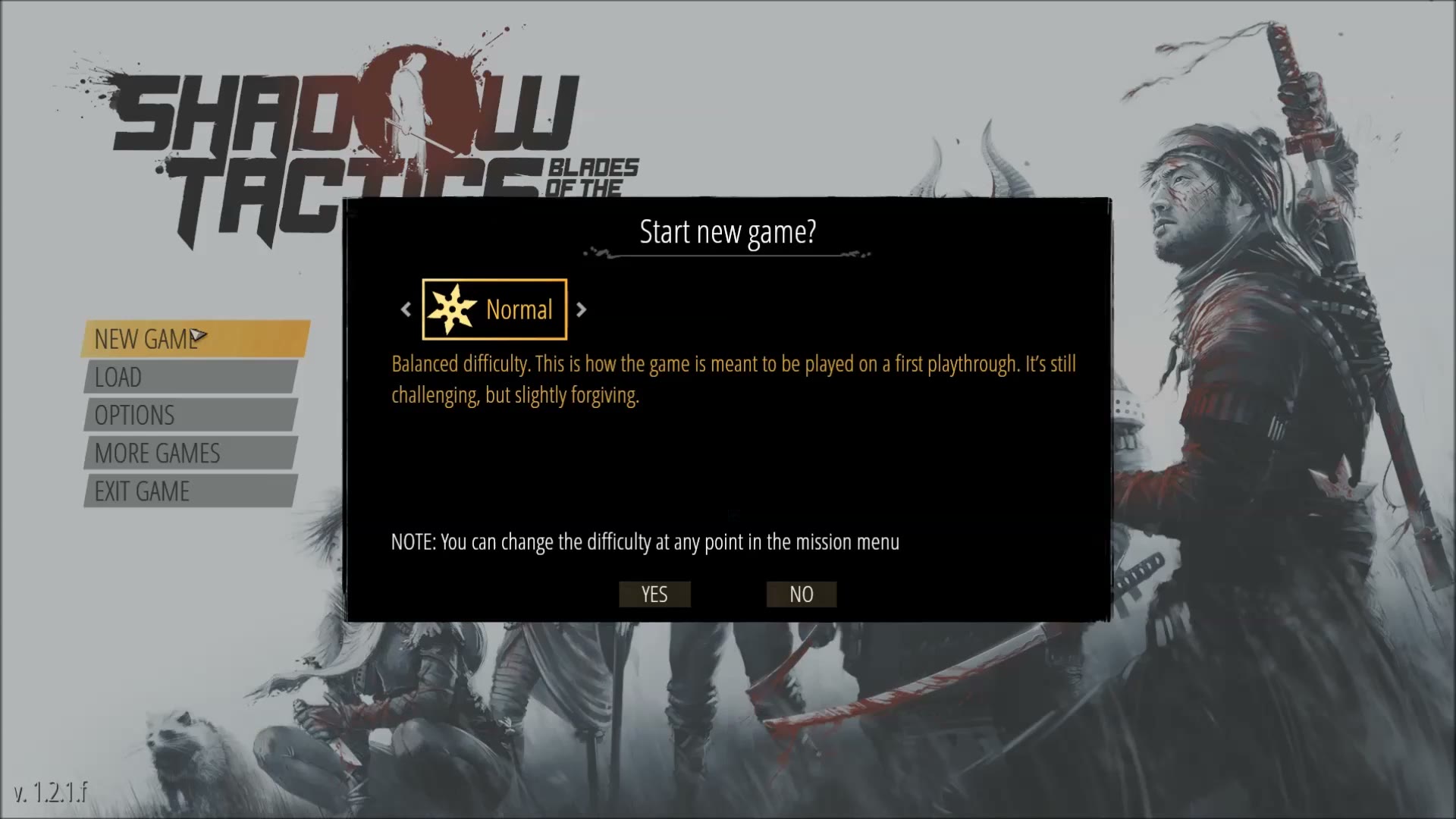

Difficulty Selection Dialog
Shadow Tactics: Blades of the Shogun
- Status
- Released
- Year
- 2016
- Genre
- Indie, Strategy
- Platforms
- Windows, macOS, Linux
1. Summary
A centered modal dialog that appears after selecting "New Game" from the main menu, allowing the player to choose a campaign difficulty before starting. The dialog shows a difficulty selector with left/right arrows, a colored shuriken icon, explanatory gameplay text, and a note that difficulty can be changed later from the mission menu. The player confirms with "YES" to proceed to the mission loading screen or "NO" to return to the main menu.
Overview
Difficulty Selection Dialog (ui_3)
The Difficulty Selection Dialog is a non-diegetic modal that appears after the player selects “New Game” from the main menu. It allows the player to choose the campaign difficulty before the first mission loads. The dialog presents the current difficulty tier with a colored shuriken icon, left/right arrows for cycling options, and descriptive text explaining how the selected difficulty affects the experience.
Full Screen Context
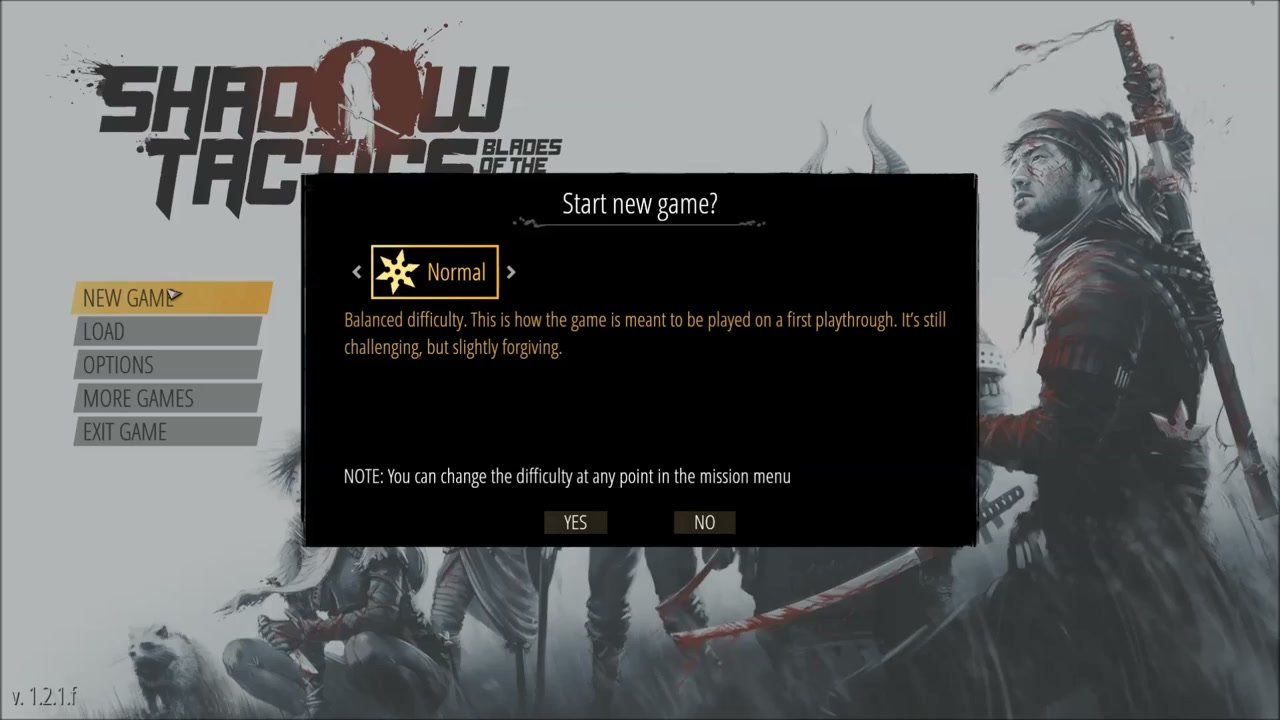
The dialog appears as a centered dark rectangular panel overlaid on the main menu screen. The main menu background remains visible but is dimmed to focus attention on the modal. The game logo, character illustration, and menu buttons are still partially visible behind the semi-transparent backdrop.
Dialog Close-up - Normal Difficulty
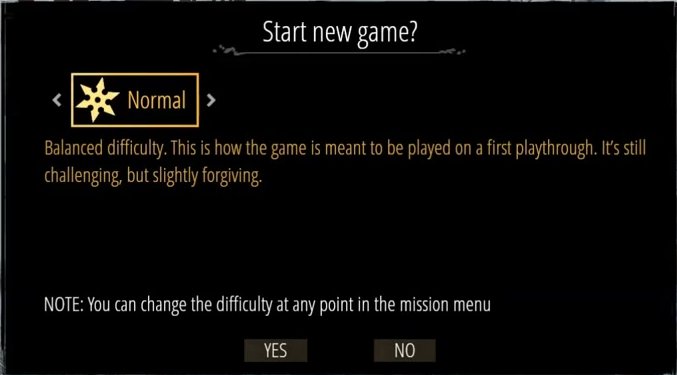
The observed selected difficulty is “Normal”, displayed with a yellow/gold shuriken icon. The description explains this is the balanced difficulty intended for a first playthrough. A note below the description reassures players that they can change the difficulty later from the mission menu.
Difficulty Selector
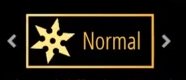
The selector row contains a left arrow, colored shuriken icon, difficulty name, and right arrow. Cycling the selector changes the difficulty name, icon color, and description text.
Confirmation Buttons

At the bottom of the modal, the “YES” button confirms the selected difficulty and starts the campaign flow. The “NO” button cancels the action and returns to the main menu.
Difficulty Options Summary
| Difficulty | Icon Color | Key Gameplay Differences | Badge Earning |
|---|---|---|---|
| Beginner | Green | Enemies detect slower, are less aggressive, and heroes have more health | Disabled |
| Normal | Yellow/Gold | Balanced difficulty, intended for a first playthrough | Enabled |
| Hardcore | Red | Enemies detect almost instantly, are more aggressive, and heroes have less health | Enabled |
Key Interactions
- Left/Right Arrows: Cycle between difficulty options. The icon color, name, and description update immediately.
- YES: Confirms the selected difficulty and transitions to the mission loading screen.
- NO: Cancels and returns to the main menu without starting a new game.
- Note Text: Informs the player that difficulty can be adjusted at any time through the in-game mission menu.
Job Story
When I want to start a new campaign in Shadow Tactics, I want to review and select an appropriate difficulty level with clear explanations of how it affects gameplay, so that I can have a balanced experience matching my skill level while knowing I can adjust it later if needed.
Classification
- diegesis: Non-diegetic
- functional_type: Frontend shell
- component_type: Button
Wireframe
┌─────────────────────────────────────────────────────────┐
│  [Main Menu background dimmed]                          │
│                                                         │
│         ┌──────────────────────────────┐                │
│         │       Start new game?        │  <- Title      │
│         │                              │                │
│         │  <  [shuriken] Normal    >   │  <- Selector   │
│         │                              │                │
│         │  Balanced difficulty. This   │  <- Description│
│         │  is how the game is meant to │                │
│         │  be played on a first        │                │
│         │  playthrough...              │                │
│         │                              │                │
│         │  NOTE: You can change the    │  <- Note       │
│         │  difficulty at any point in  │                │
│         │  the mission menu            │                │
│         │                              │                │
│         │    [YES]        [NO]         │  <- Buttons    │
│         └──────────────────────────────┘                │
│                                                         │
└─────────────────────────────────────────────────────────┘
Layout notes:
- Modal dialog is centered on screen, approximately x=0.235-0.764 and y=0.240-0.761
- Dark semi-transparent background panel with decorative top/bottom borders
- Title centered at top of dialog
- Difficulty selector is horizontally aligned near the upper-left portion of the content area, with left/right arrow controls flanking the icon and name
- Description text is left-aligned below the selector
- Note text is positioned above the action buttons
- “YES” and “NO” buttons are side by side at the bottom center
Components
- Dialog Title - "Start new game?" centered at the top of the modal in white text with decorative underline flourishes.
- Difficulty Selector - Horizontal row containing:
- Left Arrow (<) - Cycles to the previous difficulty option
- Difficulty Icon - A colored shuriken/star symbol that changes color per difficulty:
- Green for "Beginner"
- Yellow/Gold for "Normal"
- Red for "Hardcore"
- Difficulty Name - Text label for the current difficulty
- Right Arrow (>) - Cycles to the next difficulty option
- Difficulty Description - Multi-line descriptive text explaining gameplay differences for the selected difficulty:
- Beginner: Enemies detect slower and are less aggressive. Heroes have more health. Badges cannot be earned on this difficulty.
- Normal: Balanced difficulty. Intended as the first playthrough experience. Not too easy but forgiving enough.
- Hardcore: Enemies detect almost instantly and are more aggressive. Heroes have less health. Recommended for experienced players.
- Note Text - "NOTE: You can change the difficulty at any point in the mission menu". Positioned above the action buttons.
- Action Buttons - Two rectangular buttons at the bottom:
- YES - Confirms the selected difficulty and proceeds to the mission loading screen
- NO - Cancels and returns to the main menu
- Modal Background Panel - Dark rectangular overlay with subtle decorative borders that dims the main menu behind it.
- Dimmed Backdrop - The main menu screen behind the dialog is darkened to focus attention on the modal.
Parameters & Audio
| Parameter | Value | Type | Notes |
|---|---|---|---|
| Modal Open | Subtle whoosh or fade-in sound when the dialog appears over the main menu | Text | — |
| Difficulty Cycle | Soft click or switch sound when cycling between difficulty options with left/right arrows | Text | — |
| Difficulty Select | Distinct audio cue when a difficulty option is highlighted/selected | Text | — |
| Button Hover | Subtle hover sound when mousing over "YES" or "NO" buttons | Text | — |
| Button Click | Confirmation sound when clicking "YES" to proceed; cancel sound when clicking "NO" | Text | — |
| Main Menu Dim | Background music from the main menu continues at reduced volume while the dialog is open | Text | — |
Dependencies & Logic
- Main Menu state: The dialog can only be triggered from the main menu when "New Game" is selected; requires the main menu to be fully loaded and interactive
- Difficulty configuration: The game must have the campaign difficulty tiers configured with their respective gameplay parameters, including detection speed, enemy aggression, and hero health multipliers
- Localization: All text elements (title, difficulty names, descriptions, note, buttons) must be localized for all supported languages
- Mission menu integration: The note text mentions that difficulty can be changed via the mission menu; this requires the in-game mission menu to have a functional difficulty adjustment setting
- Badge system state: The Beginner difficulty description references badge earning restrictions; this requires the Mission Badge System (m_5) to be aware of the current difficulty setting and disable badge rewards accordingly
- Save slot availability: If no save slots are available, the dialog must still function for new campaigns; if loading an existing save, this dialog is bypassed
- Campaign progression: Selecting a difficulty establishes the campaign-wide difficulty parameter that persists across missions unless changed via the mission menu
BDD Scenarios
Scenario: Open difficulty dialog from main menu
- Given
- the player is on the main menu screen
- When
- the player clicks "NEW GAME"
- Then
- the difficulty selection dialog appears centered over the main menu
- And
- the dialog title reads "Start new game?"
- And
- the default selected difficulty is "Normal"
Scenario: Cycle through difficulty options
- Given
- the difficulty selection dialog is open
- When
- the player clicks the right arrow
- Then
- the difficulty cycles to the next option
- And
- the shuriken icon color changes to match the difficulty
- And
- the description text updates to explain the new difficulty's gameplay differences
Scenario: Select Beginner difficulty
- Given
- the difficulty selection dialog is open
- When
- the player cycles to "Beginner"
- Then
- the description explains enemies detect slower and heroes have more health
- And
- a warning is displayed that badges cannot be earned on this difficulty
Scenario: Select Hardcore difficulty
- Given
- the difficulty selection dialog is open
- When
- the player cycles to "Hardcore"
- Then
- the description explains enemies detect almost instantly and are more aggressive
- And
- the shuriken icon is displayed in red
Scenario: Confirm difficulty and start game
- Given
- the player has selected a difficulty in the dialog
- When
- the player clicks "YES"
- Then
- the dialog closes
- And
- the game transitions to the mission loading screen
- And
- the selected difficulty is applied to the campaign
Scenario: Cancel difficulty selection
- Given
- the difficulty selection dialog is open
- When
- the player clicks "NO"
- Then
- the dialog closes
- And
- the player returns to the main menu
- And
- no new game is started
Scenario: Change difficulty later via mission menu
- Given
- the player has started a campaign on "Normal" difficulty
- When
- the player opens the mission menu during gameplay
- Then
- the new difficulty settings are applied to the current mission
- And
- changes the difficulty to "Hardcore"
- And
- the note text from the initial dialog is confirmed to be accurate
Edge Cases
- No difficulty selected (bug): If the dialog somehow opens without a default difficulty, it should auto-select "Normal" as the fallback
- Rapid arrow clicks: Fast clicking of left/right arrows should debounce properly and not skip difficulties or cause visual glitches
- Double-click on action buttons: Clicking "YES" multiple times rapidly should only trigger the transition once and ignore subsequent clicks
- Resolution change while dialog open: If the display resolution changes while the dialog is visible, it should remain centered and properly scaled
- Localization missing: If a localized difficulty description is missing, fall back to English or show a generic placeholder rather than empty text
- Controller disconnection: If a controller disconnects while the dialog is open, the dialog should remain functional with mouse/keyboard input
- Background click: Clicking outside the dialog bounds (on the dimmed main menu) should behave consistently - either do nothing or dismiss the dialog (Escape behavior)
- Alt+Tab during dialog: The dialog should remain visible and functional when returning focus to the game
- Memory pressure: The dialog should not leak memory if opened and closed repeatedly from the main menu
QA Notes
- Verify the dialog appears immediately after clicking "New Game" from the main menu
- Test cycling through all available difficulties with both left and right arrows
- Confirm the shuriken icon color changes correctly: green for Beginner, yellow for Normal, red for Hardcore
- Verify all description text is localized correctly and displays fully without truncation
- Test the "YES" button proceeds to the mission loading screen on all difficulties
- Test the "NO" button returns to the main menu without starting a new game
- Verify the note text about changing difficulty via mission menu is visible and accurate
- Test keyboard navigation: Left/Right arrows to cycle, Enter to confirm, Escape to cancel
- Test controller navigation: D-pad left/right to cycle, A to confirm, B to cancel
- Verify the dialog is centered correctly at different resolutions (720p, 1080p, 4K)
- Confirm the Beginner difficulty correctly disables badge earning in the Mission Badge System
- Verify that changing difficulty mid-campaign via the mission menu updates gameplay parameters correctly
- Test rapid arrow clicking does not cause visual glitches or incorrect difficulty selection
- Verify the dialog does not overlap or clip the main menu elements behind it
- Test with different UI scale settings if available
- Confirm the dialog handles gamepad hot-plugging gracefully
Mechanic Links
- Stealth Detection System - The Stealth Detection System is directly affected by the selected difficulty. On Novice, enemies detect players slower; on Professional, enemies detect almost instantly. The difficulty selection dialog configures the detection speed parameter for the entire campaign.
- Mission Badge System - The Mission Badge System is disabled when Novice difficulty is selected. The dialog displays a warning that badges cannot be earned on Novice, linking the difficulty choice directly to badge eligibility.
- Enemy Type Hierarchy - The Enemy Type Hierarchy behavior is modified by difficulty selection. On Professional, enemies are more aggressive; on Novice, they are less aggressive. The dialog's description text communicates these behavioral differences to the player.