
Gameplay Settings List
Desperados 3
- Status
- Released
- Year
- 2020
- Genre
- Strategy
- Platforms
- Windows, macOS, Linux
1. Summary
A non-diegetic gameplay options list inside the Options > Gameplay menu. It presents input, camera, save-reminder, automation, and visibility settings as vertically stacked rows with right-aligned toggles, sliders, and stepped values.
Overview
The Gameplay Settings List is the central scrollable list inside OPTIONS > GAMEPLAY. It combines controller selection, vibration, controller aim tuning, viewcone visibility, outline strength, silhouettes, save reminder timing, auto-standup, auto-dialogue, crate content highlighting, and fast-forward behavior into one options panel.
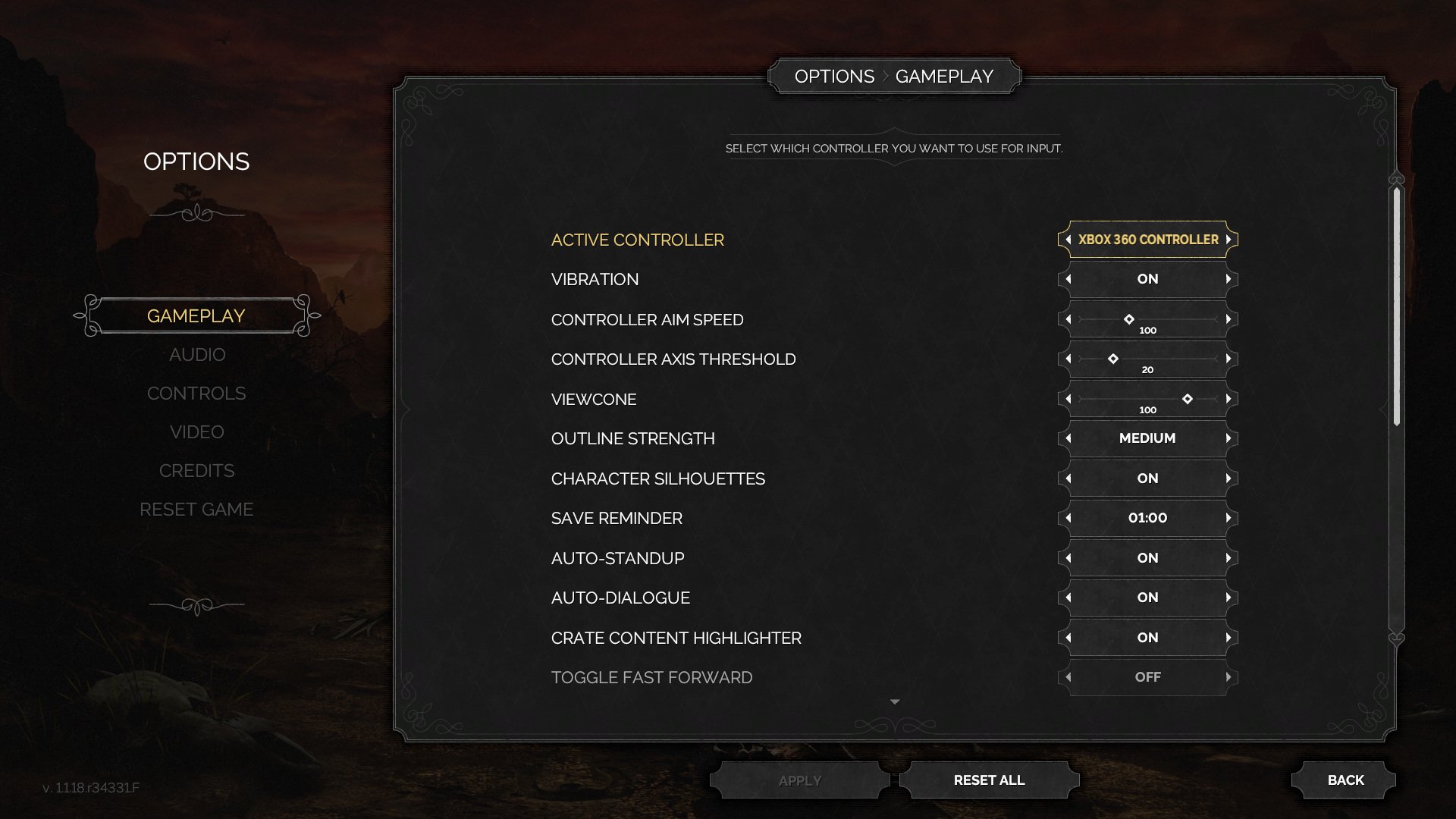
The list uses a consistent two-column row structure: labels on the left, controls on the right. The active row is emphasized in yellow, and the current value is shown in a framed selector. The visible controls include text selectors, ON/OFF toggles, sliders with numeric values, and preset values.
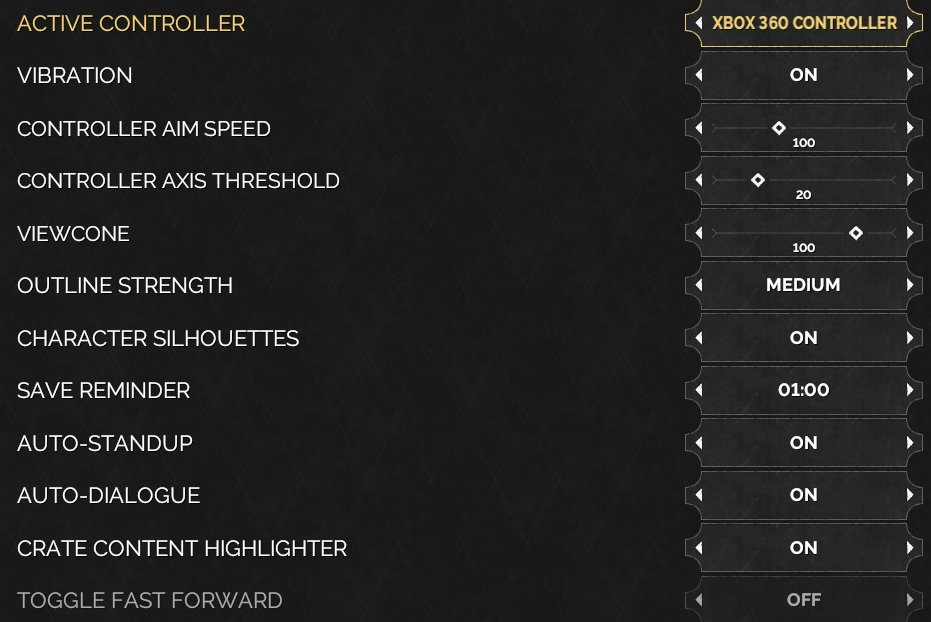
The right edge of the panel includes a scrollbar, making the settings list an overflow area rather than a fixed set of visible rows. Bottom actions (APPLY, RESET ALL, BACK) are visually separated from the list and operate on the settings state rather than individual rows.
Job Story
When I am configuring how Desperados III controls, saves, and assists gameplay, I want related gameplay options in one scannable list, so that I can tune tactical play comfort without leaving the options flow.
Classification
- diegesis: Non-diegetic
- functional_type: Frontend shell
- component_type: List/grid
Wireframe
OPTIONS                         OPTIONS > GAMEPLAY

[Gameplay]              +-----------------------------------------+
 Audio                  | Helper text                             |
 Controls               |                                         |
 Video                  | Active Controller          [value < >]  |
 Credits                | Vibration                  [ON < >]     |
 Reset Game             | Controller Aim Speed       [--o---]     |
                        | Controller Axis Threshold  [--o---]     |
                        | Viewcone                   [----o-]     |
                        | Outline Strength           [MEDIUM]     |
                        | Character Silhouettes      [ON]         |
                        | Save Reminder              [01:00]      |
                        | Auto-Standup               [ON]         |
                        | Auto-Dialogue              [ON]         |
                        | ...                          [scroll]   |
                        +-----------------------------------------+
                           [Apply]       [Reset All]       [Back]
Components
- Options category navigation with Gameplay selected.
- Breadcrumb/title tab: OPTIONS > GAMEPLAY.
- Context helper text explaining the focused setting.
- Scrollable settings row list.
- Setting label column.
- Right-aligned value/control column.
- Toggle value boxes (ON/OFF).
- Slider controls with marker and numeric value.
- Stepped selector controls with left/right arrows.
- Vertical scrollbar.
- Bottom actions: APPLY, RESET ALL, BACK.
Parameters & Audio
| Parameter | Value | Type | Notes |
|---|---|---|---|
| Visual feedback is driven by highlight color, grey disabled styling, arrow brackets, slider markers, and scrollbar position. The available screenshot does not provide direct evidence for audio or haptic feedback, so no audio or haptic parameters are specified here. | Visual feedback is driven by highlight color, grey disabled styling, arrow brackets, slider markers, and scrollbar position. The available screenshot does not provide direct evidence for audio or haptic feedback, so no audio or haptic parameters are specified here. | Text | — |
Dependencies & Logic
- The list depends on the game's configuration state and input-device state. ACTIVE CONTROLLER reflects available controller/input selection, controller aim settings depend on controller-style input being relevant, and gameplay assistance rows such as character silhouettes, auto-standup, auto-dialogue, crate content highlighter, toggle fast forward, and save reminder persist as gameplay option values. The scrollbar depends on the number of gameplay settings available in the current build/platform.
BDD Scenarios
Scenario: Focus a gameplay setting
- Given
- the player is on Options > Gameplay
- When
- the player moves focus to a settings row
- Then
- the focused row label and value control are highlighted
Scenario: Toggle a gameplay option
- Given
- the player focuses a gameplay setting with an `ON` or `OFF` value
- When
- the player changes the value
- Then
- the row displays the new toggle state in the right-side control
- And
- the `APPLY` action becomes available when the change is unapplied
Scenario: Adjust a slider setting
- Given
- the player focuses a slider-based gameplay setting
- When
- the player moves the slider value
- Then
- the marker position and numeric value update in the control box
- And
- the setting remains in the same row for continued adjustment
Scenario: Reset gameplay settings
- Given
- the player is viewing the Gameplay settings list
- When
- the player activates `RESET ALL`
- Then
- gameplay settings return to their default values
- And
- the visible row values update to match those defaults
Edge Cases
- Long localized labels must not collide with the right-aligned value controls.
- The scrollable list must preserve focus visibility when navigating past the visible rows.
- APPLY should remain disabled when no values differ from saved settings.
- Controller-specific rows should still render predictably when no controller is connected or a different input device is active.
- Resetting all settings should update both visible and off-screen rows consistently.
QA Notes
- Verify that focus highlight is visible on every row, including rows reached by scrolling.
- Verify each right-side control type: toggle, stepped selector, and slider.
- Verify that changing any gameplay option enables APPLY and that applying persists after leaving and returning to the screen.
- Verify RESET ALL restores defaults for both visible and off-screen gameplay options.
- Verify controller-related settings with controller connected and disconnected.
- Verify readable layout at supported languages and aspect ratios.
References
- 1.
Desperados III (L52-56 of 283)
- 2.