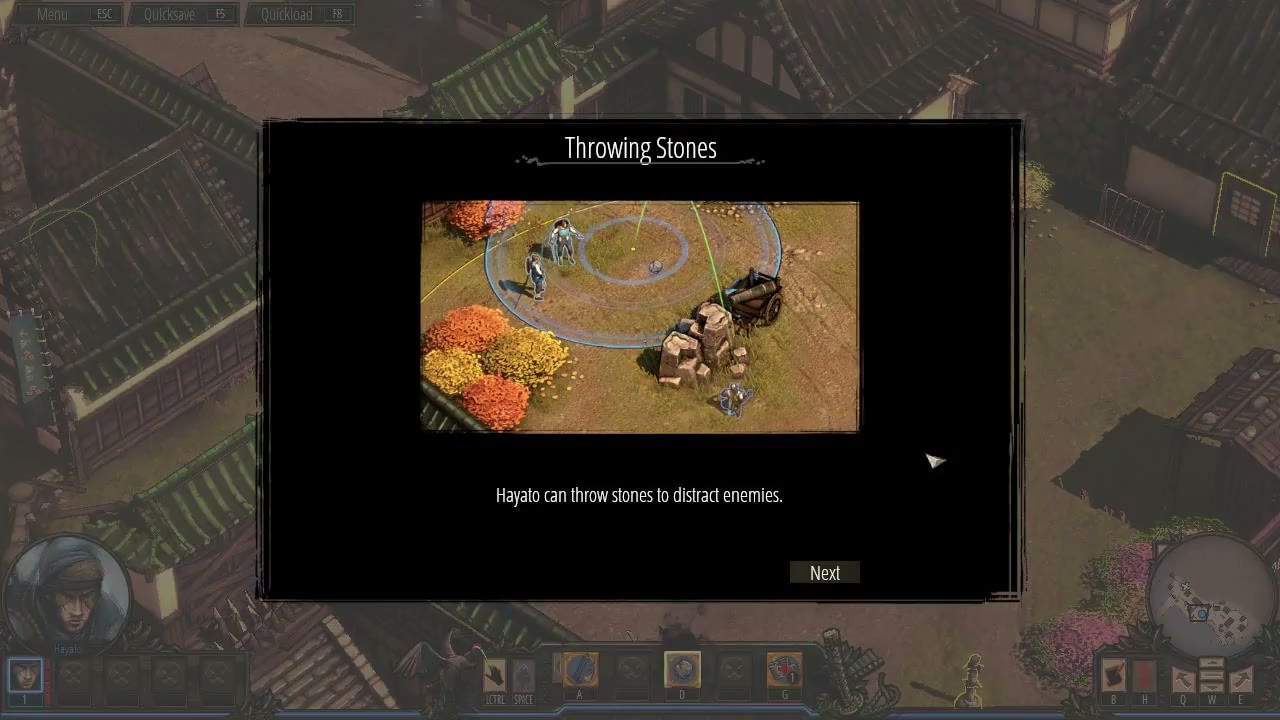

Bottom Gameplay HUD Bar
Shadow Tactics: Blades of the Shogun
- Status
- Released
- Year
- 2016
- Genre
- Indie, Strategy
- Platforms
- Windows, macOS, Linux
1. Summary
The Bottom Gameplay HUD Bar is a persistent, full-width non-diegetic HUD strip anchored to the bottom edge of the screen during active missions. It serves as the primary tactical command surface, hosting the Character Portrait and Selection Panel on the left, the Ability Command Bar in the center, and the Minimap with utility controls on the right. The bar dynamically updates based on the selected character, mission squad composition, and game state.
Overview
The Bottom Gameplay HUD Bar is the primary persistent command surface in Shadow Tactics: Blades of the Shogun. It is a full-width, non-diegetic HUD strip anchored to the bottom edge of the screen during all active mission gameplay. The bar serves as a container for three major sub-systems: the Character Portrait and Selection Panel on the left, the Ability Command Bar in the center, and the Minimap on the right. A decorative ornamental frame unifies these elements into a cohesive whole with a feudal Japanese aesthetic.
The bar dynamically updates based on the currently selected character, mission squad composition, and game state. It remains visible while the player controls their squad in the isometric world, providing at-a-glance access to character switching, ability execution, and tactical overview without opening separate menus.
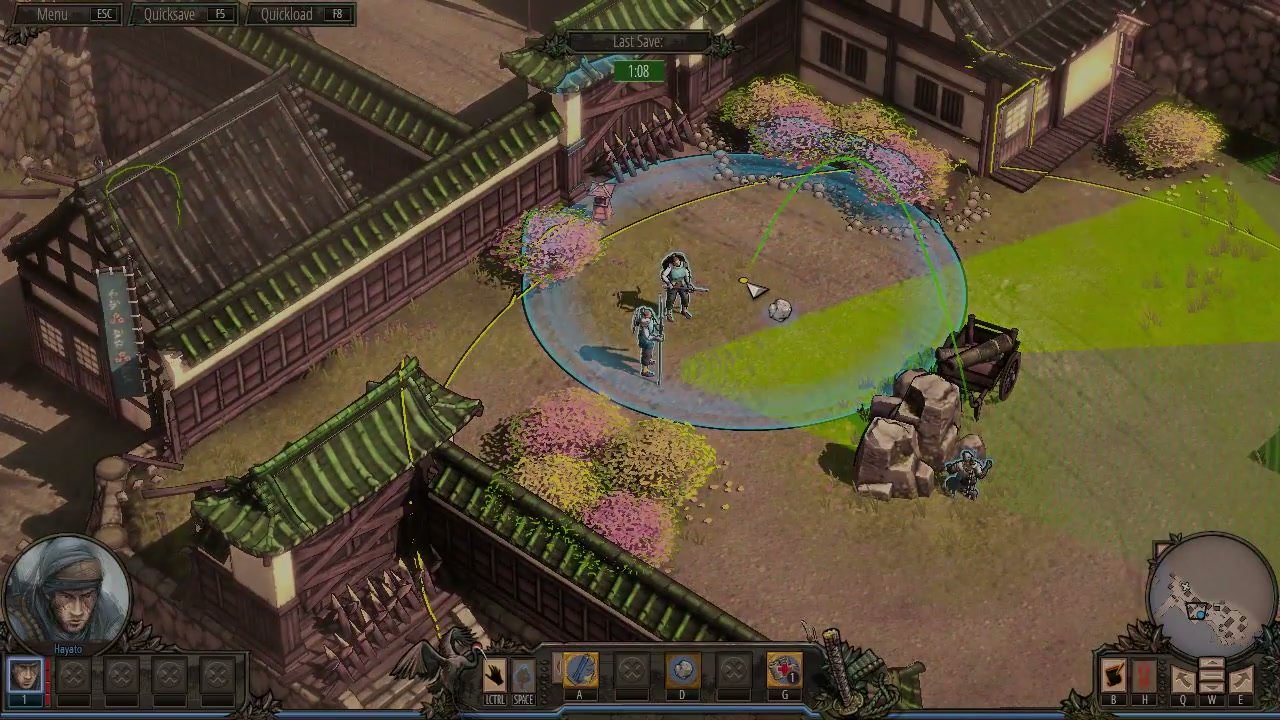
The left side of the bar features a circular portrait of the active character, with a row of numbered slots below for quick squad selection. The active slot is visually highlighted. The center portion displays the selected character’s context actions and abilities as icon buttons mapped to hotkeys. In the captured Hayato state, LCTRL and SPACE are context actions, A and D are available ability buttons, the middle slots are unavailable, and G is a healing item slot. The right side contains a circular minimap in an ornate frame, showing the mission area, squad positions, and objective markers.

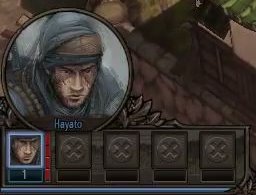
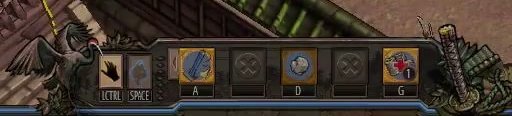
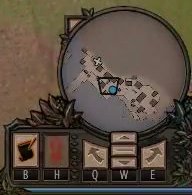
The bar also includes a save timer indicator labeled “Last Save” positioned just above the main HUD strip in active play, tracking elapsed time since the last quicksave and changing color from green to yellow to red as time passes.
The Bottom Gameplay HUD Bar is hidden during cutscenes, dialogue sequences, loading screens, and menu overlays, and fades back in smoothly when the player regains control. It scales horizontally to fit different aspect ratios while maintaining the relative positioning and proportions of its sub-elements.
Job Story
When the player is in an active mission and needs to control their squad of characters, they want a persistent, at-a-glance command surface at the bottom of the screen, so that they can quickly switch characters, execute abilities, and monitor the tactical situation without opening separate menus or losing sight of the isometric world.
Classification
- diegesis: Non-diegetic
- functional_type: HUD
Wireframe
+--------------------------------------------------------------------------------+
|                                                                                |
|                           ISOMETRIC GAMEPLAY WORLD                             |
|                                                                                |
|                                                                                |
+--------------------------------------------------------------------------------+
|  +-----------+  +----------------------------------------+  +---------------+  |
|  | Portrait  |  | [LCTRL] [SPACE] [A] [S] [D] [F] [G]  |  |    Minimap    |  |
|  |  Panel    |  | context context ability slots item    |  |   (circular)  |  |
|  | + slots   |  |          available / unavailable       |  | + util buttons|  |
|  +-----------+  +----------------------------------------+  +---------------+  |
+--------------------------------------------------------------------------------+
The bar spans the full viewport width (x=0.0 to x=1.0) and occupies approximately the bottom 15-27% of the screen (y≈0.73 to y=1.0). It is visually framed by decorative ornamental elements that integrate the three sub-panels into a cohesive whole. The bar remains visible during all active gameplay and is hidden during cutscenes, loading screens, and menu overlays.
Components
- Character Portrait and Selection Panel (left): A circular character portrait showing the currently selected operative, with a row of portrait slots below for quick squad selection. The active character is highlighted.
- Ability Command Bar (center): The primary action toolbar displaying context actions, character abilities, unavailable slots, and consumable/action slots as icon buttons mapped to hotkeys such as LCTRL, SPACE, A, S, D, F, and G. The exact contents update by selected character and game state.
- Minimap Panel (right): A circular minimap in an ornate frame showing the tactical overview of the mission area, with squad member positions, objective markers, and enemy awareness indicators. Utility buttons sit below or beside the minimap.
- Decorative Frame: Ornamental wing-like and scrollwork elements that visually unify the left, center, and right panels into a single cohesive HUD strip with a feudal Japanese aesthetic.
- Save Timer Indicator: A small timer display labeled "Last Save" appears above the HUD bar, tracking time since the last quicksave.
Parameters & Audio
| Parameter | Value | Type | Notes |
|---|---|---|---|
| Character Switch | A soft, distinct tone or brief musical sting when switching between squad members via the portrait panel. | Text | — |
| Ability Selection | Subtle wooden click or parchment rustle when selecting abilities in the command bar. | Text | — |
| Context Action / Consumable Use | A distinct confirmation sound when activating a context-specific command or consumable slot, such as the healing item shown on G in the captured HUD state. | Text | — |
| Save Timer Alert | A subtle chime or pulse when the time-since-save threshold is exceeded, encouraging the player to save. | Text | — |
| Minimap Ping | A soft blip when objectives or points of interest update on the minimap. | Text | — |
| HUD Show/Hide | Smooth fade-in/fade-out transitions when the HUD appears or disappears (e.g., entering/exiting cutscenes). | Text | — |
Dependencies & Logic
- Mission State: The bar is only visible during active mission gameplay. It is hidden during cutscenes, dialogue sequences, loading screens, and menu screens.
- Selected Character: The entire bar's content dynamically updates to reflect the currently selected character's portrait, abilities, and available actions.
- Squad Composition: The number of active portrait slots (1-5) depends on which characters are available in the current mission.
- Campaign Progression: Some abilities and squad members may be locked until specific campaign milestones are reached.
- Character State: If a character is incapacitated, dead, or not yet joined, their portrait slot reflects this status (grayed out, missing, or unavailable).
- Screen Resolution / Aspect Ratio: The bar scales horizontally to fit the viewport width. The vertical size may vary slightly based on aspect ratio.
- Save System: The save timer indicator above the bar depends on the quicksave system's last save timestamp.
BDD Scenarios
Scenario: HUD appears on mission start
- Given
- the player has finished the mission briefing and the level has loaded
- When
- the player gains control of their squad
- Then
- the Bottom Gameplay HUD Bar fades in within 0.5 seconds, showing the first character's portrait, abilities, and minimap
Scenario: Character switch updates entire HUD bar
- Given
- the player is in an active mission with Hayato selected
- When
- the player clicks on Yuki's portrait slot (slot 2) in the left panel
- Then
- the character portrait updates to Yuki, the Ability Command Bar updates to show Yuki's abilities, and the minimap highlights Yuki's position
Scenario: HUD hides during cutscene
- Given
- the player is in an active mission with the HUD visible
- When
- a story cutscene begins
- Then
- the Bottom Gameplay HUD Bar fades out within 0.3 seconds and remains hidden until the cutscene ends
Scenario: HUD reappears after cutscene
- Given
- a story cutscene has just ended
- When
- the player regains control of their squad
- Then
- the Bottom Gameplay HUD Bar fades back in within 0.5 seconds with the previously selected character's state restored
Scenario: Save timer updates
- Given
- the player has not saved for 2 minutes
- When
- the save timer threshold is reached
- Then
- the timer indicator above the HUD bar changes color (green → yellow → red) and an optional audio cue plays
Scenario: Incomplete squad composition
- Given
- the current mission only includes 2 characters (Hayato and Mugen)
- When
- The described event occurs.
- Then
- the portrait panel shows only 2 active slots, with slots 3-5 either hidden or grayed out as unavailable
Edge Cases
- Player loads a save where the selected character is no longer alive or available — the HUD should automatically switch to the next available character.
- Mission only has 1 character available — the portrait panel shows a single slot, and the minimap focuses on that lone operative.
- All squad members are incapacitated — the HUD may gray out entirely or display a "Mission Failed" prompt.
- Character is in a state that blocks ability usage (climbing, swimming, carrying a body) — the Ability Command Bar updates to show only contextually valid actions.
- Player switches characters rapidly — the HUD must update within 1 frame without visual glitches or flickering.
- Screen resolution is extremely wide (ultrawide) or narrow — the bar must scale horizontally without stretching or clipping sub-elements.
- A command, ability, or consumable slot is unavailable in the current context — the corresponding hotkey slot is hidden or grayed out.
- Firearm abilities are not yet unlocked — the corresponding ability slots remain hidden or unavailable until the campaign unlock flag is active.
- Tutorial overlays cover part of the HUD — the HUD remains visible underneath but may be partially obscured by tutorial highlights.
- Player opens the mission journal (B) or settings menu — the HUD remains visible in the background but may be dimmed.
- Save timer exceeds a critical threshold (e.g., 10 minutes) — the timer may pulse or flash more urgently to encourage saving.
QA Notes
- Verify the Bottom HUD Bar appears within 0.5 seconds of mission start and hides within 0.3 seconds when a cutscene begins.
- Verify the bar spans the full viewport width on 16:9, 21:9, and 4:3 aspect ratios without clipping.
- Verify character switching via portrait slots updates the Ability Command Bar within 1 frame.
- Verify the minimap accurately reflects squad positions, objective markers, and enemy awareness states.
- Verify the save timer indicator updates correctly and changes color at defined thresholds.
- Verify the bar is completely hidden during cutscenes, loading screens, and the main menu.
- Verify all sub-elements (portrait panel, ability bar, minimap) maintain their relative positions when scaling.
- Verify command, ability, and consumable slots update to match the selected character and current game state.
- Verify audio cues play for character switching, ability selection, and context action or consumable use.
- Verify the HUD remains responsive when the player rapidly switches between characters.
- Verify that when a character dies, their portrait is grayed out and the HUD auto-switches to the next available character.
- Verify keyboard shortcuts for character selection, abilities, context actions, and consumables work correctly alongside mouse clicks.
Mechanic Links
- Character Ability System - Displays character abilities
- Normal Guards - Bottom Gameplay HUD Bar contains the active gameplay controls and status context players use while reading Normal Guard patrols and executing stealth actions.
- Four-Slot Ability Binding Framework - The Bottom Gameplay HUD Bar anchors the Ability Command Bar and keeps the slot row positioned consistently during active gameplay.
- Ranged Elimination Abilities - The bottom gameplay HUD anchors the selected character's command set and shows availability context for ranged actions during play.
- Area-of-Effect Crowd Control Attack - The Bottom Gameplay HUD Bar contains the ability bar and active character context needed to select the owner and execute the attack during missions.
- Deployable Pressure Trap Mechanic - The bottom gameplay HUD hosts the selected character's ability controls and therefore frames access to the deployable trap during normal play.
- Companion Command System - The bottom gameplay HUD shows the selected character, available abilities, and companion-related command controls during play.
- Single-Use Healing Ability - The Bottom Gameplay HUD Bar houses the character and command HUD elements that make health state, selection context, and healing availability readable during active play.