
Character Portrait And Selection Panel
Shadow Tactics: Blades of the Shogun
- Status
- Released
- Year
- 2016
- Genre
- Indie, Strategy
- Platforms
- Windows, macOS, Linux
1. Summary
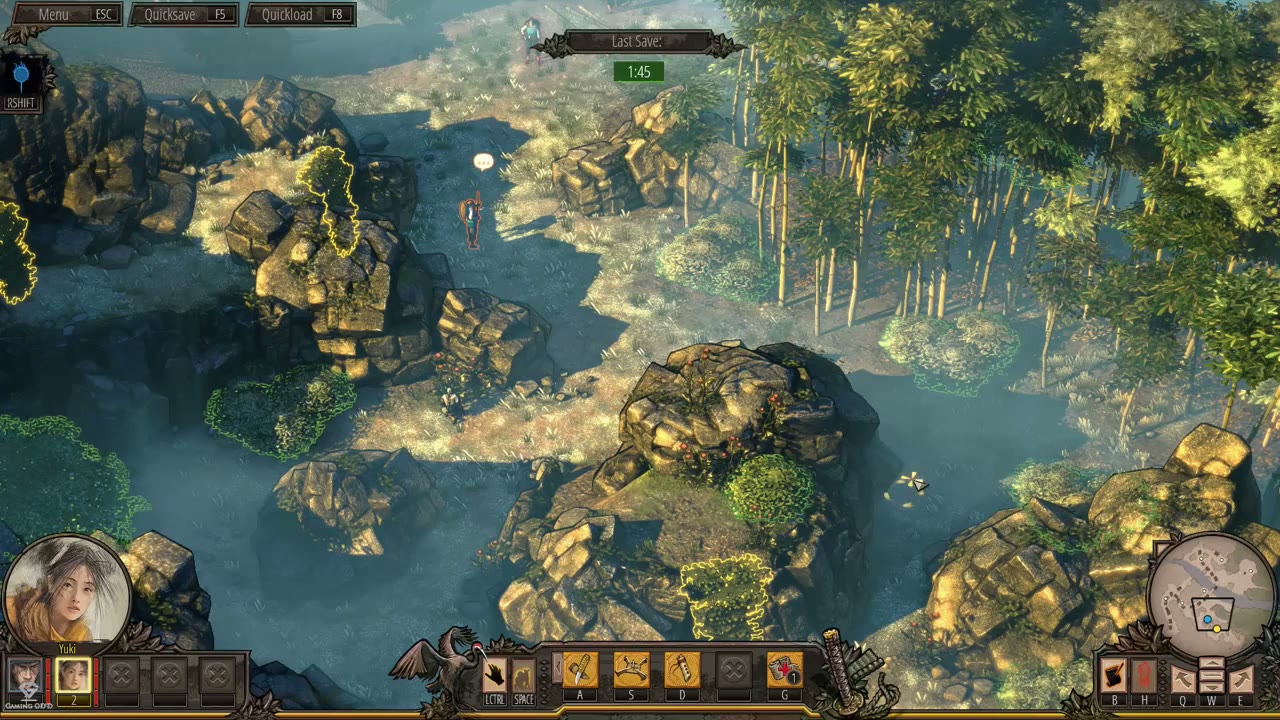
The Character Portrait And Selection Panel is a non-diegetic HUD element located on the bottom-left of the screen during active missions. It displays a large circular portrait of the currently selected character along with their name, and a row of small square portrait slots below for quick-switching between available squad members. The panel updates dynamically based on mission squad composition and drives the content of the central Ability Command Bar.
Overview
The Character Portrait And Selection Panel is the leftmost sub-system of the Bottom Gameplay HUD Bar. It is a non-diegetic HUD element that provides persistent character identity and quick-switching capability during active missions.
The panel occupies the bottom-left corner of the viewport (approximately x=0.0-0.2, y=0.73-1.0). Its dominant feature is a large circular portrait showing the face of the currently selected character, framed in ornate decorative borders with a feudal Japanese aesthetic. Below the portrait, the character’s name is displayed in text. Under the name label sits a horizontal row of small square portrait slots representing the available squad members for the current mission.
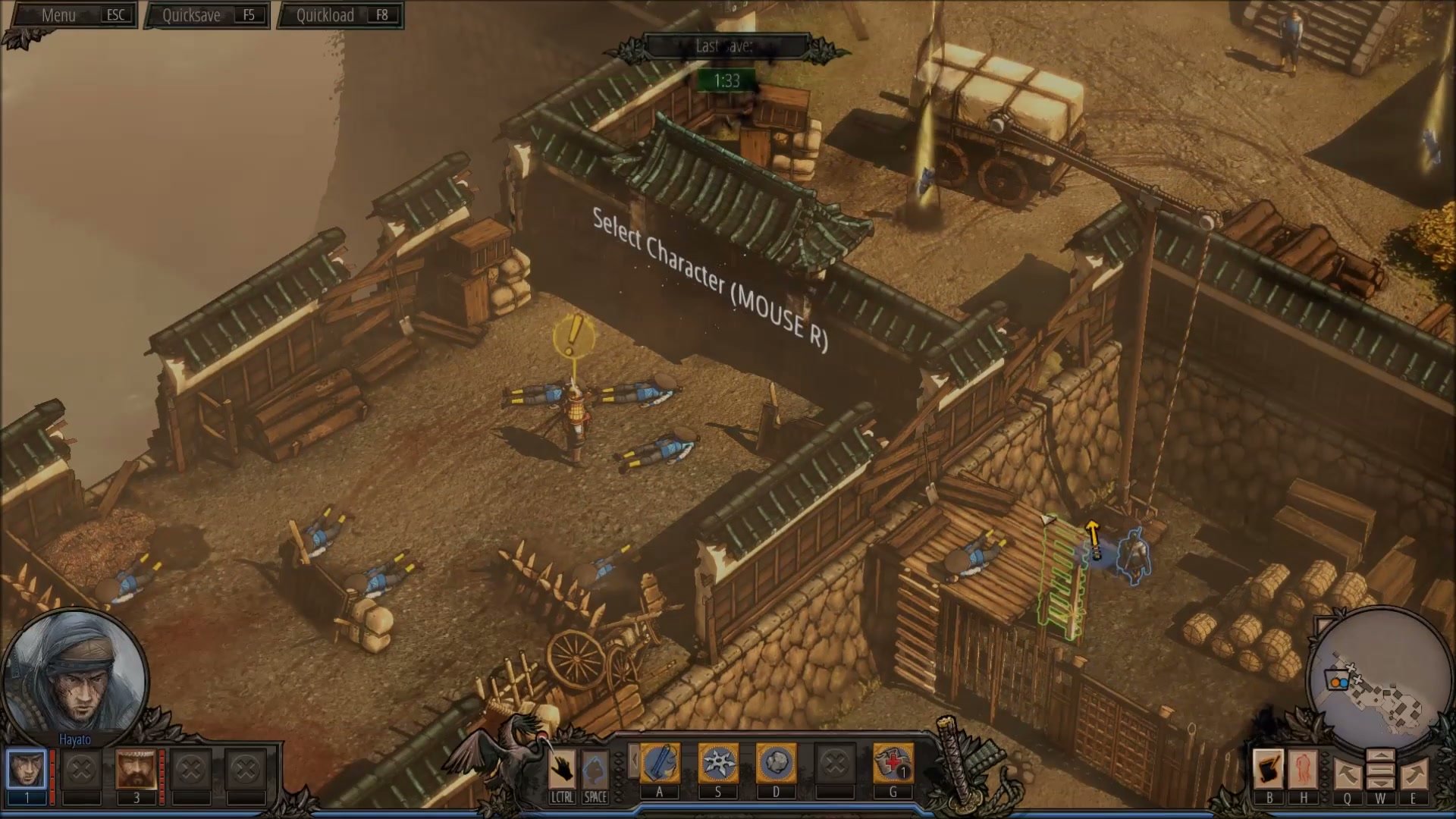
When the player switches characters - by clicking a portrait slot or pressing the corresponding character hotkey - the large circular portrait and name label update instantly, and the Ability Command Bar in the center of the HUD updates to show the new character’s abilities.
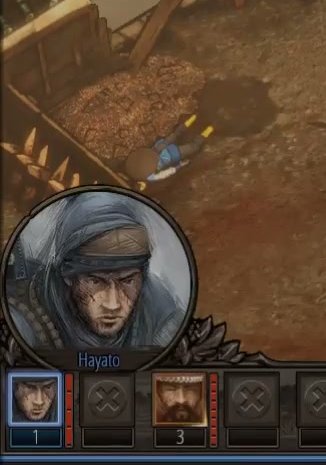
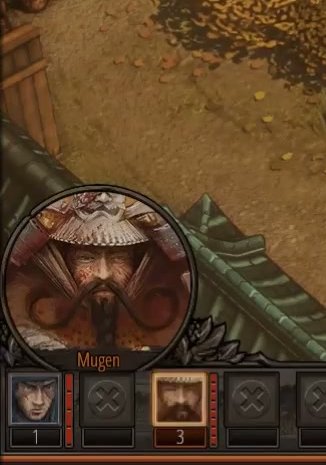
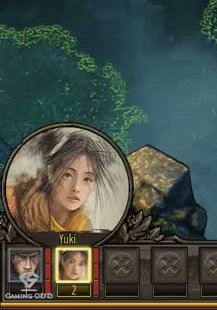
The active character’s slot is visually highlighted with a brighter border or glow. Slots for characters not yet joined, not present in the current mission, or incapacitated appear darkened or grayed out. Early missions may only show one or two active slots; later missions can show a larger squad roster as more characters become available (Hayato, Mugen, Yuki, Aiko, Takuma).
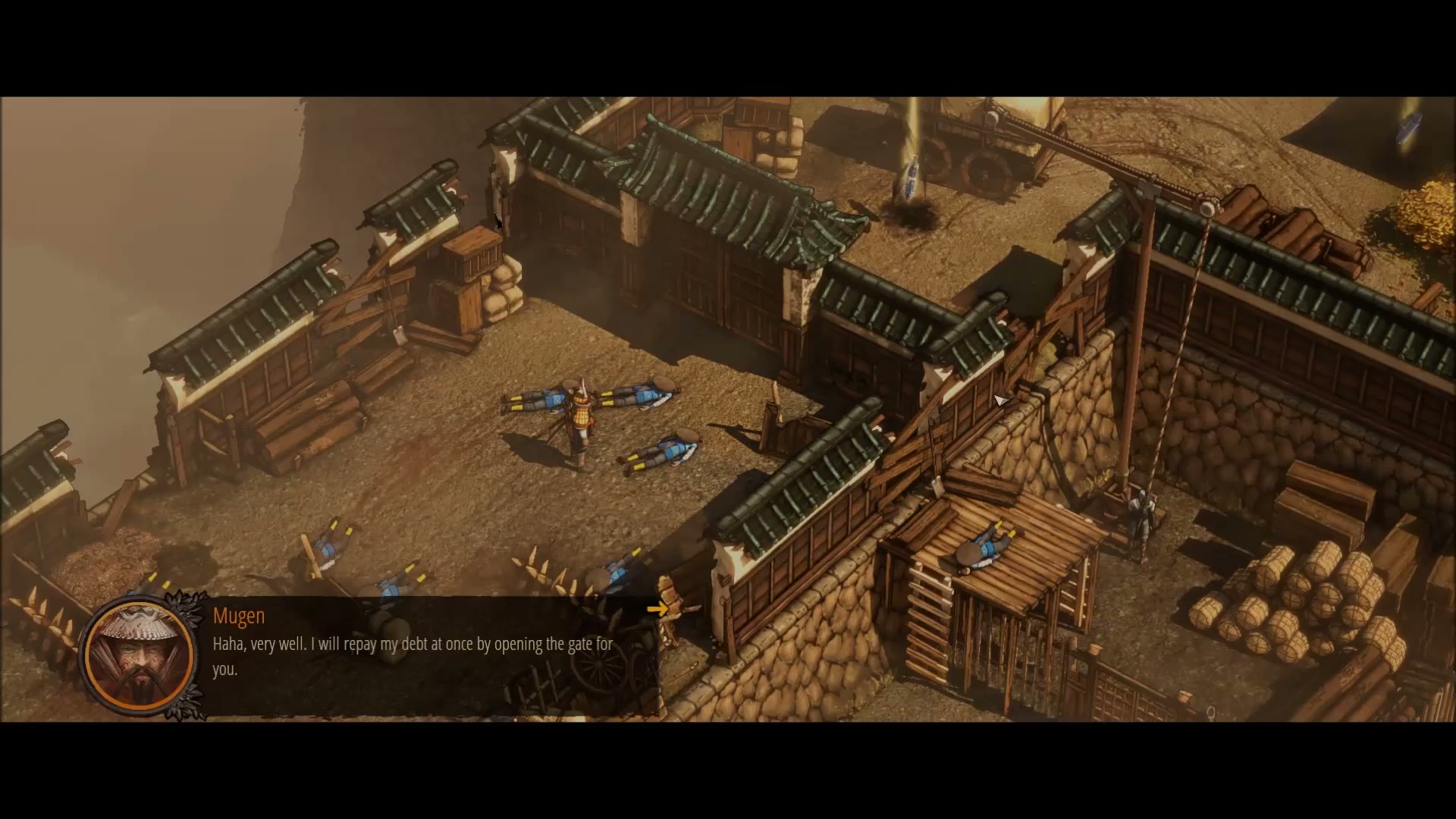
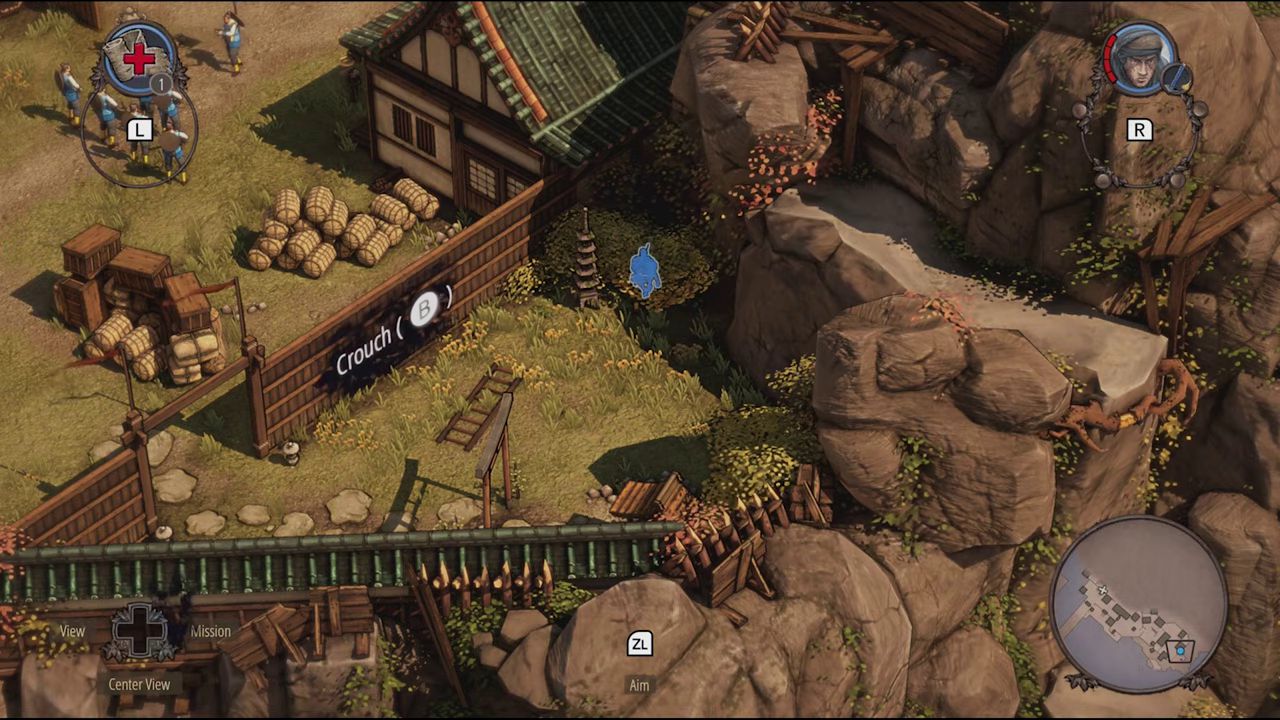
The panel is hidden during cutscenes, dialogue sequences, loading screens, and menu overlays. It fades back in smoothly when the player regains control. On the Nintendo Switch 2 version, the layout adapts to show circular portraits in the L/R corners of the screen, but the PC version maintains the bottom-left panel described here.
Job Story
When the player is in an active mission and needs to control a different squad member or verify which character is currently selected, they want a persistent portrait panel in the bottom-left corner of the screen, so that they can instantly see the active character and click or hotkey-switch to any available teammate without opening a separate menu.
Classification
- diegesis: Non-diegetic
- functional_type: HUD
Wireframe
+----------------------------------+
|  +--------------------+          |
|  |   (circular        |          |
|  |    portrait)       |          |
|  |   [Character       |          |
|  |     Face]          |          |
|  +--------------------+          |
|       Character Name             |
|  [1] [2] [3] [4] [5]             |
|  +--+ +--+ +--+ +--+ +--+        |
|  |P1| |P2| |P3| |P4| |P5|        |
|  +--+ +--+ +--+ +--+ +--+        |
+----------------------------------+
The panel occupies the bottom-left corner of the viewport (approximately x=0.0-0.2, y=0.73-1.0). It contains a large circular portrait at the top showing the active character’s face in an ornate decorative frame, the character name printed below the portrait, and a horizontal row of small square portrait slots (1-5) beneath for squad selection. The active character’s slot is visually highlighted.
Components
- Active Character Portrait (large circular): A prominent circular portrait showing the face of the currently selected character, framed with ornate decorative borders. The portrait changes immediately when switching characters.
- Character Name Label: Text displayed below the large portrait identifying the active character (e.g., "Hayato", "Yuki", "Mugen", "Aiko", "Takuma").
- Character Selection Slots (1-5): Small square portrait buttons arranged horizontally below the name label. Each slot shows a miniature portrait of a squad member. Slots are numbered 1-5 for hotkey mapping (F1-F5).
- Active Slot Highlight: The slot corresponding to the currently selected character receives a visual highlight (brighter border, glow effect, or color tint) to indicate active status.
- Unavailable Slot State: Slots for characters not yet joined, not present in the current mission, or incapacitated appear darkened, grayed out, or display a lock/cross overlay.
- Decorative Frame: Ornamental scrollwork and wing-like elements that integrate the panel with the larger Bottom Gameplay HUD Bar.
Parameters & Audio
| Parameter | Value | Type | Notes |
|---|---|---|---|
| Character Switch | A soft, distinct tone or brief musical sting plays when switching between squad members via portrait click or hotkey. | Text | — |
| Portrait Hover | Subtle wooden click or paper rustle when the mouse cursor hovers over a character portrait slot. | Text | — |
| Unavailable Attempt | A dull thud or muted click when attempting to select an unavailable character slot. | Text | — |
| Character Joined | A distinct positive chime or fanfare when a new character becomes available in the squad during a mission. | Text | — |
| Character Incapacitated | A somber tone or vocal cue when a character is downed, and their portrait slot updates to reflect the status. | Text | — |
Dependencies & Logic
- Mission Squad Composition: The number of visible portrait slots (1-5) depends on which characters are available in the current mission. Early missions may only show 1-2 characters.
- Selected Character: The large portrait and name label always reflect the currently controlled character.
- Campaign Progression: New characters are unlocked as the campaign progresses; their portrait slots appear for the first time when they join the squad.
- Character State: If a character is incapacitated, captured, or killed, their slot becomes darkened or unavailable. If the active character becomes unavailable, control auto-switches to the next available character.
- Screen Resolution / Aspect Ratio: The panel scales with the Bottom Gameplay HUD Bar while maintaining relative proportions.
- Ability Command Bar State: The central ability bar updates in sync with character switches from this panel.
BDD Scenarios
Scenario: Panel appears on mission start
- Given
- the player has started a mission with Hayato and Mugen available
- When
- the player gains control of their squad
- Then
- the Character Portrait And Selection Panel fades in showing Hayato's large portrait, his name, and two active portrait slots (Hayato in slot 1, Mugen in slot 2)
Scenario: Switch character by clicking portrait
- Given
- the player is in a mission with Hayato currently selected
- When
- the player clicks on Mugen's portrait slot (slot 2)
- Then
- the large circular portrait updates to Mugen, the name label changes to "Mugen", slot 2 receives the active highlight, and the Ability Command Bar updates to Mugen's abilities
Scenario: Switch character by hotkey
- Given
- the player is in a mission with three characters available
- When
- the player presses F3
- Then
- control switches to the third character, the panel updates accordingly, and the Ability Command Bar reflects the new character's abilities
Scenario: New character joins mid-mission
- Given
- the player is in a mission where Yuki has not yet joined
- When
- Yuki joins the squad during the mission
- Then
- a new portrait slot appears for Yuki, a positive audio cue plays, and the player can immediately switch to her
Scenario: Active character becomes incapacitated
- Given
- Hayato is the active character and he is detected and killed by enemies
- When
- Hayato is incapacitated
- Then
- his portrait slot darkens, a somber audio cue plays, and control automatically switches to the next available character
Scenario: Single-character mission
- Given
- the current mission only includes one playable character
- When
- the mission starts
- Then
- the portrait panel shows only one active slot with no additional selectable portraits
Edge Cases
- Player clicks an unavailable character slot (not yet joined, incapacitated, or not in mission) — input is ignored with an unavailable feedback sound.
- Active character dies while performing an action — the panel auto-switches to the next available character; if none remain, the Mission Failed screen appears.
- Player rapidly switches between characters — the panel must update within 1 frame without visual glitches.
- Mission has maximum 5 characters — all 5 slots are populated; switching between them must remain responsive.
- Screen resolution is extremely wide (ultrawide) — the panel maintains its left-edge anchor and does not stretch.
- Character is in Shadow Mode planning — selecting a different character adds them to the Shadow Mode queue rather than immediately switching control.
- Tutorial overlays highlight the portrait panel — the panel remains interactive underneath tutorial highlights.
- Player loads a quicksave where the previously active character is no longer alive — the panel auto-switches to the next valid character on load.
QA Notes
- Verify the panel appears within 0.5 seconds of mission start and hides within 0.3 seconds when a cutscene begins.
- Verify clicking a portrait slot switches the active character and updates the Ability Command Bar within 1 frame.
- Verify F1-F5 hotkeys correctly map to character slots 1-5 in order.
- Verify the large circular portrait and name label always match the currently selected character.
- Verify unavailable slots (not in mission, incapacitated) are visually distinct and non-interactive.
- Verify the panel scales correctly at different resolutions and aspect ratios without clipping.
- Verify audio cues play for character switching, unavailable attempts, and new character joins.
- Verify auto-switch behavior when the active character becomes unavailable.
- Verify the panel remains responsive during rapid character switching.
- Verify portrait slots update correctly when a new character joins mid-mission.
- Verify the panel is hidden during cutscenes, loading screens, and menu overlays.
- Verify Shadow Mode integration: selecting a character while Shadow Mode is active adds them to the plan queue.
Mechanic Links
- Character Ability System - The panel controls which character is selected, and the Ability Command Bar displays the abilities produced by this mechanic for the active character.
- Character Specialization System - Each character slot represents a different specialization, and the panel lets the player quickly access each unique role.
- Character Movement System - Switching characters via the portrait panel changes which character the player directly controls for movement and positioning.
- Shadow Mode Coordination System - Selecting a character while Shadow Mode is active adds them to the coordinated multi-character plan.
- Four-Slot Ability Binding Framework - The Character Portrait And Selection Panel changes the selected character, which causes the four-slot loadout to update.
- Melee Takedown Variations - The Character Portrait And Selection Panel controls which character is active, which in turn determines which melee takedown variant appears and executes.